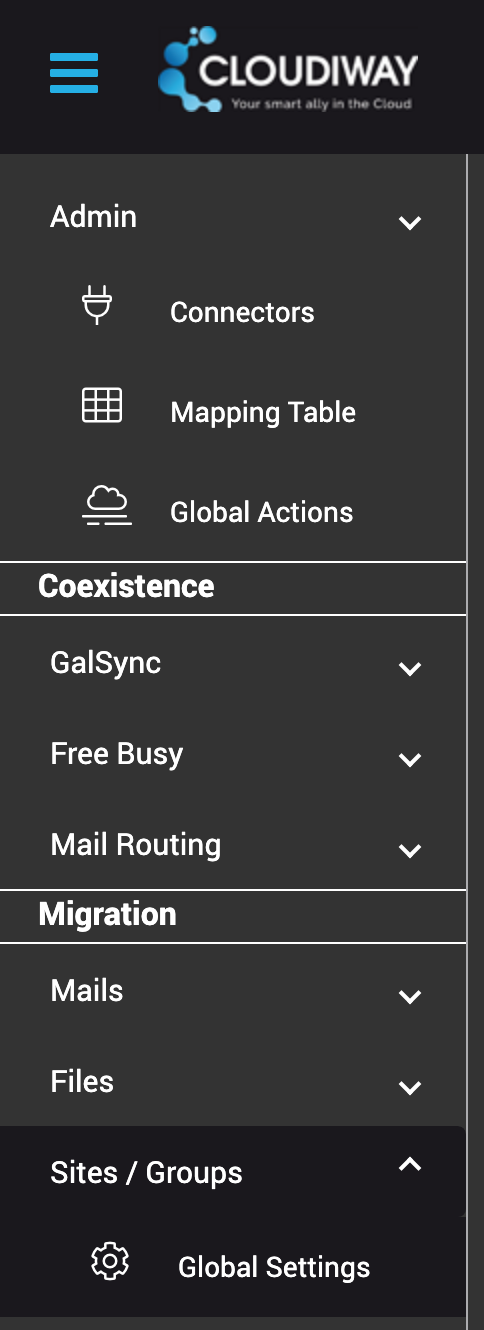
Migration Global Settings
Configure global settings to control how your cloud migration handles files, sites, Teams, permissions, and duplicates.
Overview
Global settings determine how Cloudiway handles migrations across your entire project. These settings apply to all subsequent migrations for all users and should be configured before starting the migration process.
When to Configure
Configure global settings before running your first migration. Changes to these settings will only affect migrations started after the change.
Files Migration Settings
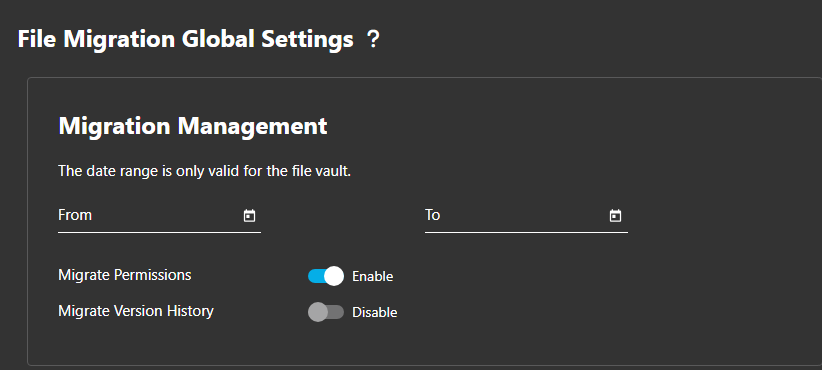
Migration Management
Migrate Permissions
Enabled by default. Transfers file and folder sharing permissions to the target.
Recommended: ONVersion History
Disabled by default. When enabled, captures all file revision history.
Impacts: Migration speed & storageMigrate From / To Date
Filter content by date range. Used for Google Vault migrations only.
Sites Migration Settings
Site Options
Enabled by default
Enabled by default
Disabled by default
Teams Migration Tip
Consider disabling TermStore migration for Teams migrations to improve speed, as it's typically not needed for Teams scenarios.
Google Sites Documents Destination
Choose where Google Sites documents should be migrated:
User OneDrives
Documents are migrated to user OneDrives and linked from SharePoint. Best for personal documents.
SharePoint Libraries
Documents are migrated directly to SharePoint document libraries. Best for shared content.
Teams/Groups Migration Settings
Configurable Options
Channel Message Settings
Message Limit
Migrate all messages or limit by count. Default: 1000 messages per channel.
Date Filter
Filter messages by date range to migrate only recent conversations.
Message Archiving
Due to Microsoft 365 throttling, older messages may be archived as HTML files rather than migrated as native Teams messages.
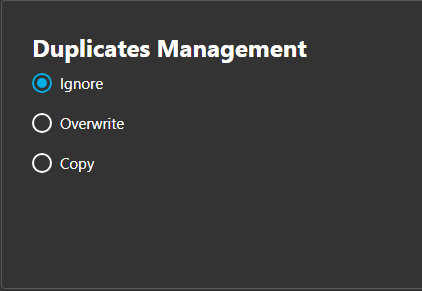
Duplicates Management
Choose how Cloudiway handles files that already exist in the target location:
Ignore
Files with matching names in the target are skipped. Error messages are logged.
Single passOverwrite
Existing files are replaced with source files on the second migration pass.
Requires 2 passesCopy
Original files are renamed with "_old" suffix. New files are created alongside.
Requires 2 passesTwo-Pass Migration
The Overwrite and Copy options require running the migration twice to take effect. The first pass identifies duplicates, and the second pass applies the chosen action.
Screenshots