Slack Connector Token Configuration
Generate and configure a Slack OAuth token for migration to Teams or Google Chat.
Slack Token Configuration Flow
Overview
The Cloudiway migration platform requires a Slack OAuth token to access your workspace data for migration to Microsoft Teams or Google Chat. This guide walks you through creating a Slack app and generating the required User OAuth token.
Administrator Required
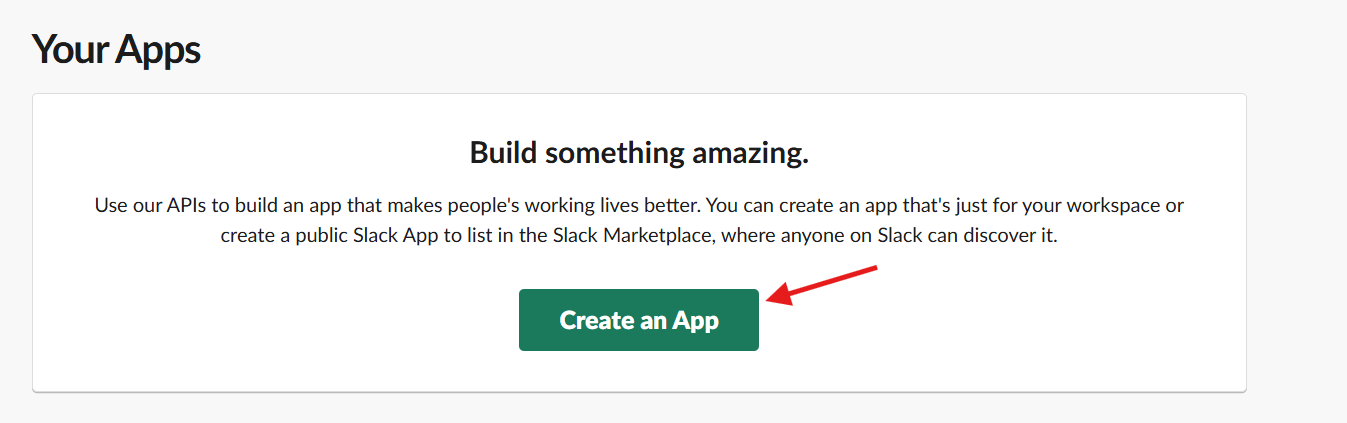
Step 1: Create Slack App
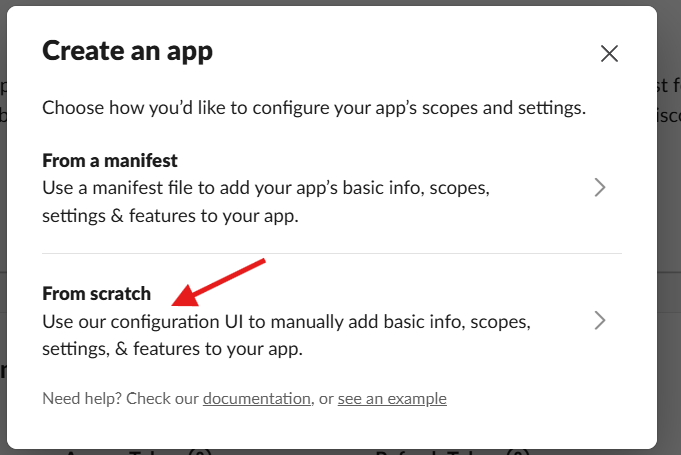
Choose "From scratch"
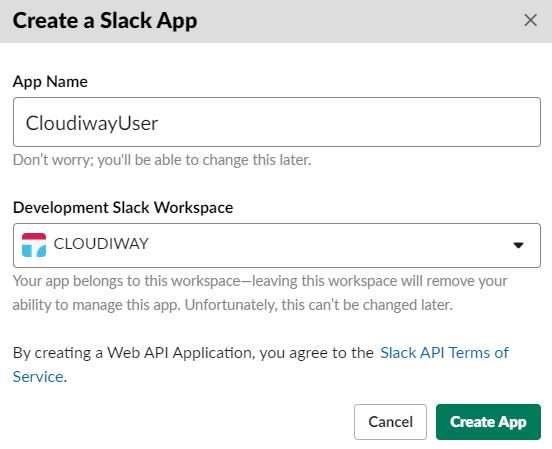
In the dialog, select From scratch to manually configure your app's scopes and settings.
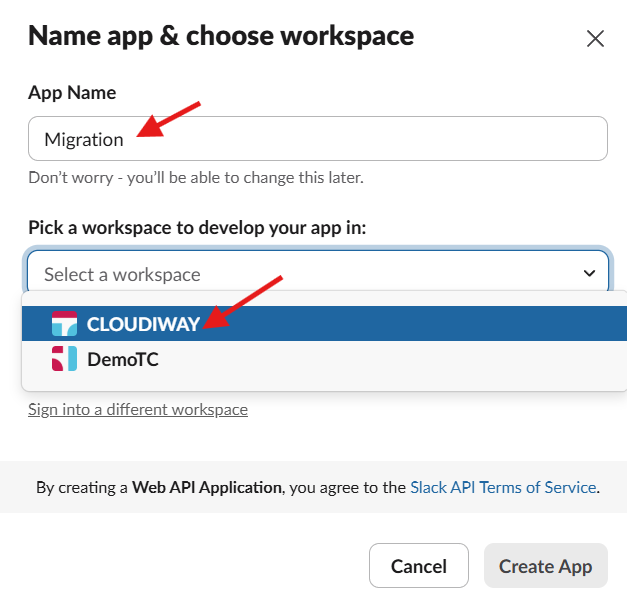
Name your app and select workspace
Enter an app name (e.g., "Migration") and select the Slack workspace you want to migrate from. Click Create App.
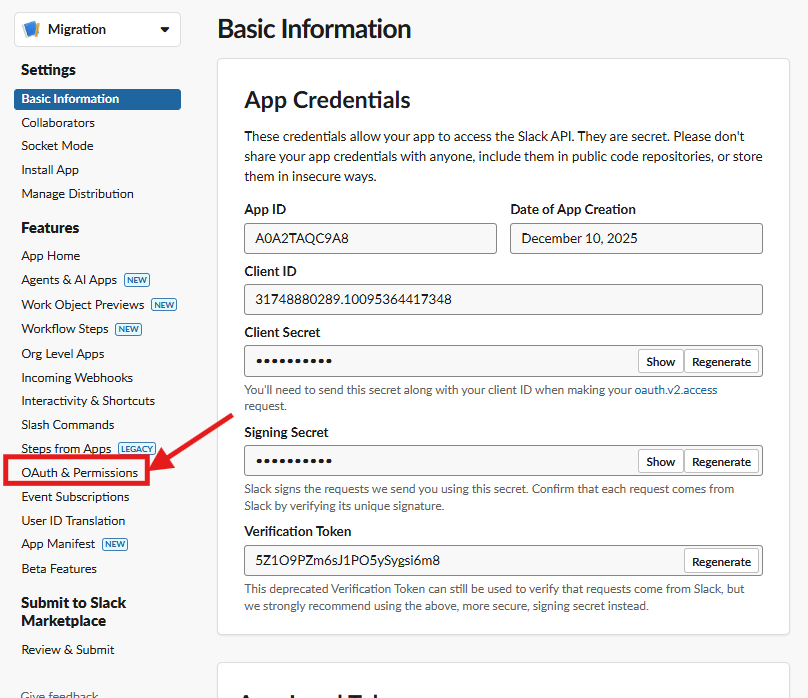
Step 2: Navigate to OAuth & Permissions
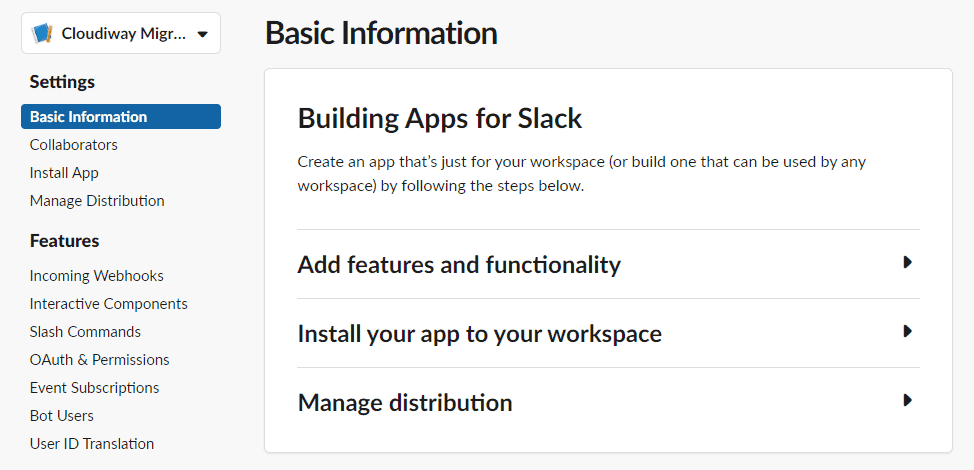
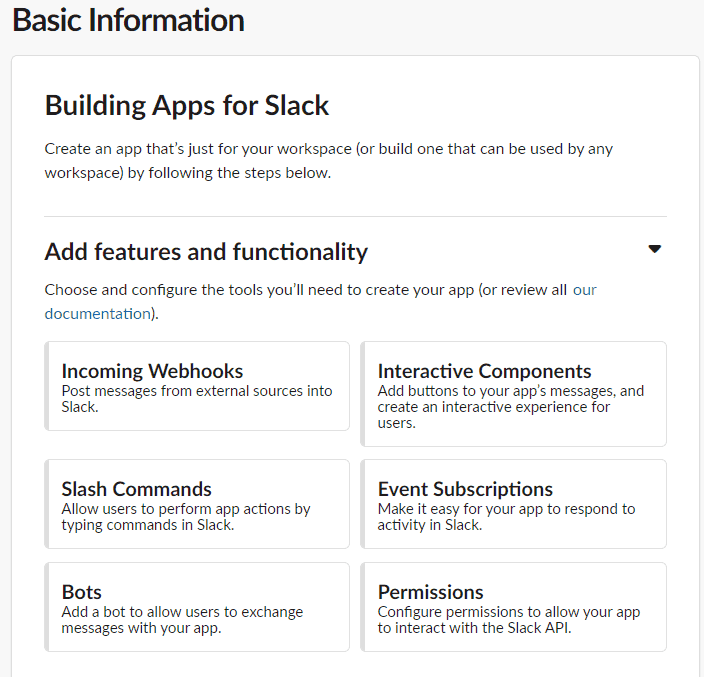
On the app configuration page, click OAuth & Permissions in the left sidebar menu.
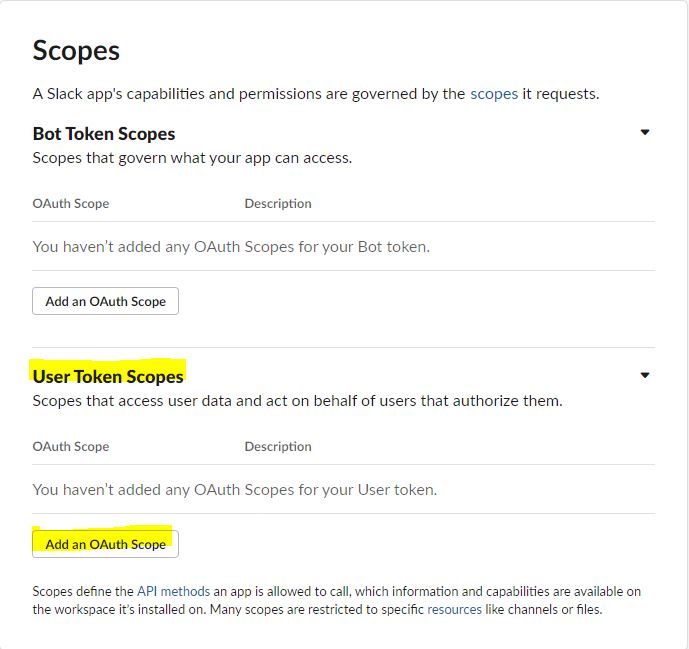
Step 3: Add User Token Scopes
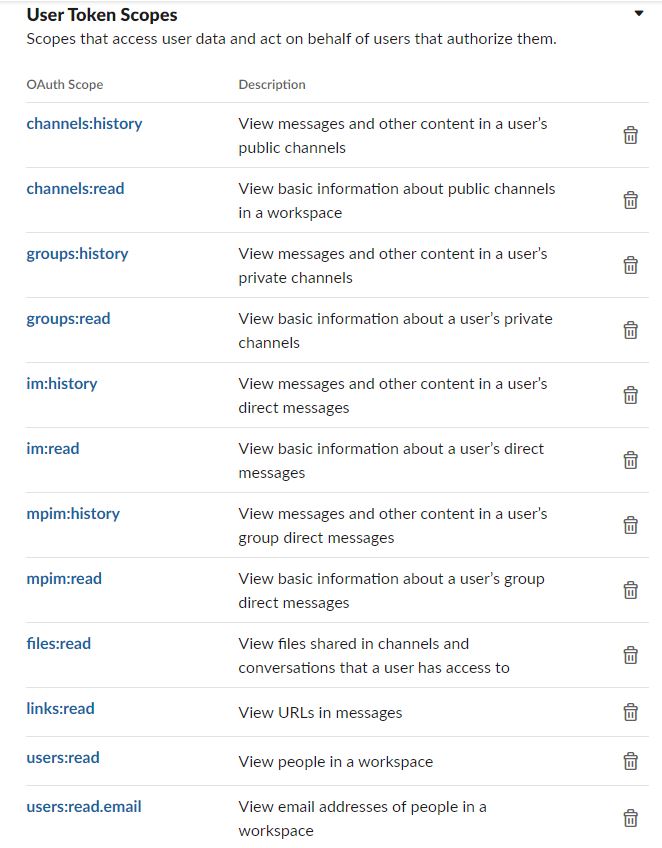
Scroll down to User Token Scopes section and click Add an OAuth Scope to add each required scope.
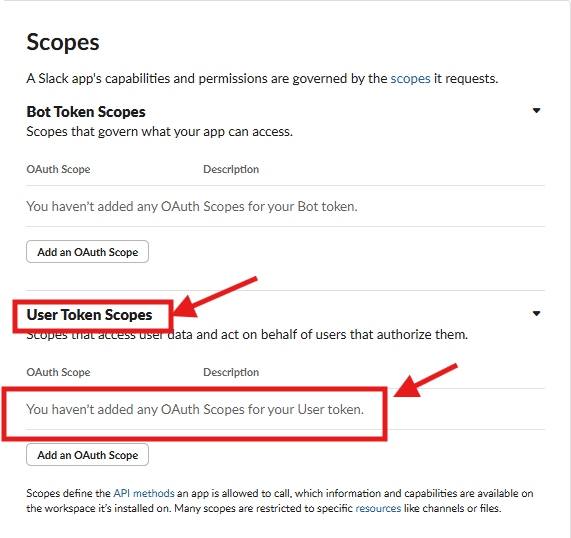
Important: Use User Token Scopes
Required OAuth Scopes
Add all of the following scopes:
| OAuth Scope | Description |
|---|---|
channels:history | View messages and other content in user's public channels |
channels:read | View basic information about public channels in a workspace |
groups:history | View messages and other content in user's private channels |
groups:read | View basic information about user's private channels |
im:history | View messages and other content in user's direct messages |
im:read | View basic information about user's direct messages |
mpim:history | View messages and other content in user's group direct messages |
mpim:read | View basic information about user's group direct messages |
files:read | View files shared in channels and conversations that user has access to |
links:read | View URLs in messages |
users:read | View people in a workspace |
users:read.email | View email addresses of people in a workspace |
All Scopes Required
Step 4: Install App and Get Token
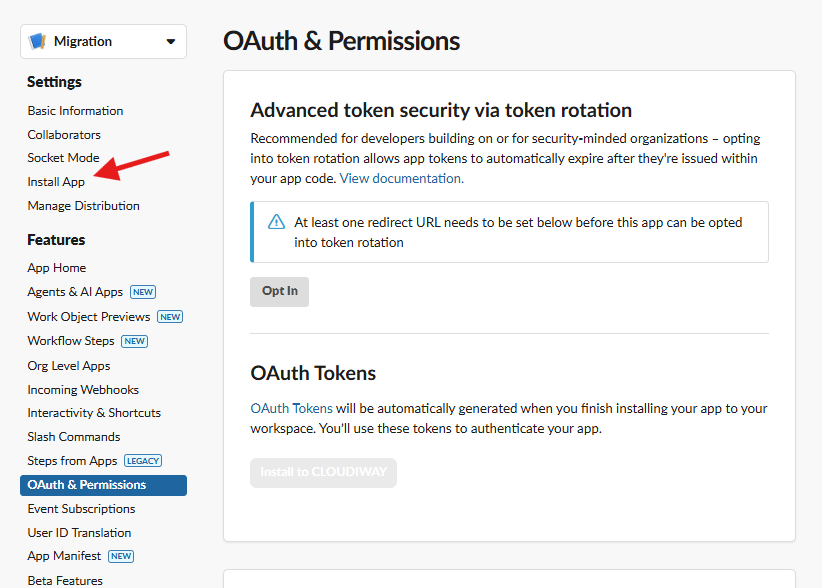
Install to Workspace
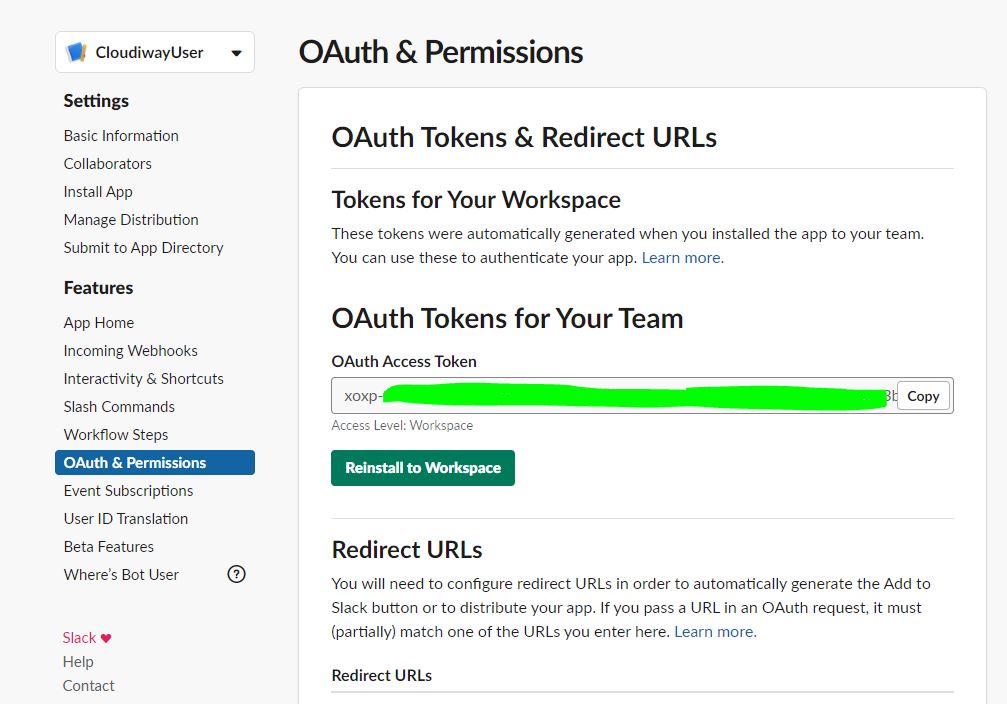
Once all scopes are added, scroll up on the same page and click Install App in the left sidebar, or use the Install to Workspace button.
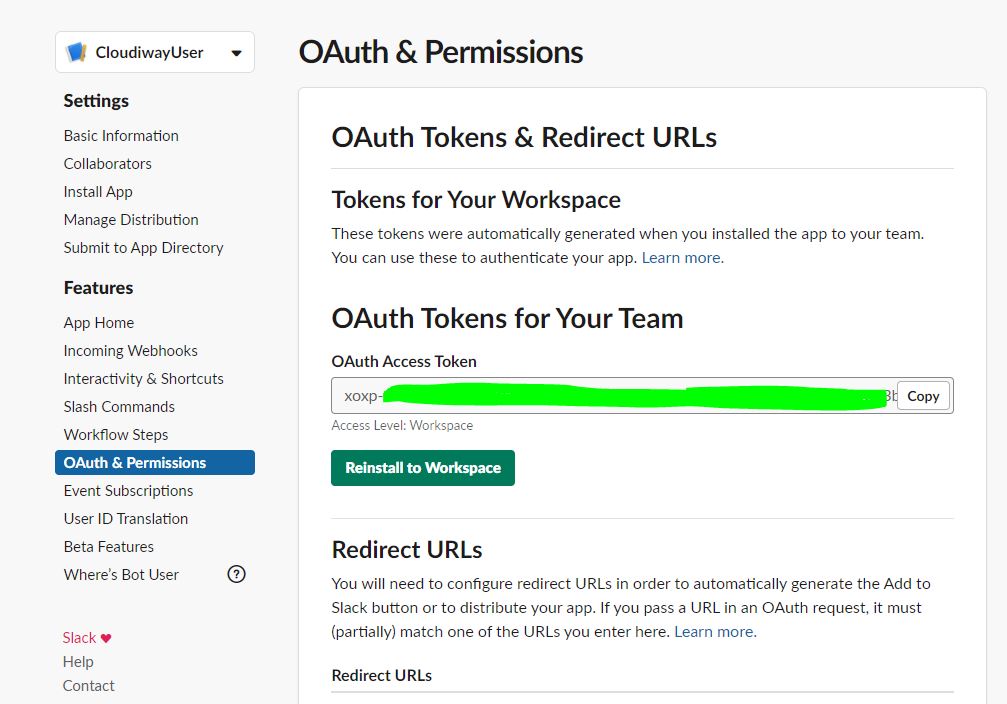
Copy the OAuth Access Token
After installation, the app is installed and an OAuth Access Token is generated. Copy the User OAuth Token (starting with xoxp-).
Token Security
The OAuth token provides access to your workspace data. Keep it secure and never share it publicly. Store it only in the Cloudiway connector configuration.
Step 5: Configure Cloudiway Connector
Copy then paste the OAuth Access Token in the Cloudiway Connector:
- Log into the Cloudiway platform
- Navigate to your project's Connectors
- Click Add Connector and select Slack
- Paste your OAuth token into the Token field
- Click Save to create the connector
Test Connection
Screenshots