Files Not Visible in Teams Channel
Resolve the issue where migrated files don't appear in the Teams channel Files tab.
The Channel Rename Problem
Problem
After migrating content to Microsoft Teams, files don't appear in the channel's Files tab. The migration completed successfully, but users cannot see their files when accessing the channel in Teams.
Symptoms
- • Files tab in Teams channel appears empty
- • Migration job shows as completed successfully
- • Files exist in SharePoint but not visible in Teams
- • Affects channels that were renamed after creation
Root Cause
When a Teams channel is renamed after creation, the underlying SharePoint folder retains its original name. This is standard Microsoft behavior—the folder name is set when the channel is first created and doesn't change when the channel is renamed.
How It Happens
Microsoft Behavior
Solution
Manually rename the SharePoint folder to match the current channel name:
Open Target Channel
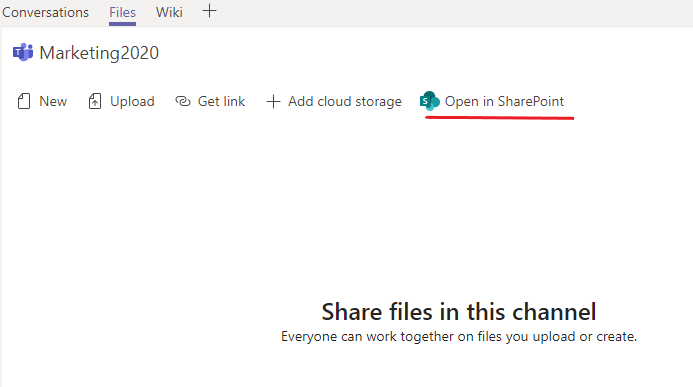
Navigate to the Teams channel where files are not visible.
Open in SharePoint
Click the Files tab, then click "Open in SharePoint" from the toolbar or the three-dot menu.
Navigate to Documents Library
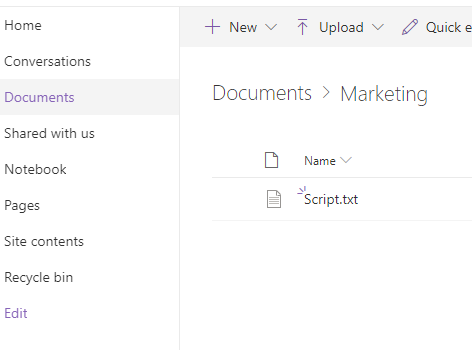
Go to the Documents library in SharePoint. You'll see folders for each channel.
Find the Old Folder
Locate the folder with the original channel name (e.g., "Marketing") that contains your migrated files.
Rename the Folder
Right-click the folder and select Rename. Change the name to match the current channel name exactly (e.g., "Marketing2020").
Verify in Teams
Return to the Teams channel and check the Files tab. Your files should now be visible.
Quick Verification
Prevention
To avoid this issue in future migrations:
Before Migration
- • Audit channel names vs. folder names
- • Document any renamed channels
- • Consider renaming folders pre-migration
After Migration
- • Verify file visibility in each channel
- • Create a checklist for renamed channels
- • Rename mismatched folders promptly
Screenshots