Overview
Microsoft Teams migration involves transferring your entire Teams environment—including team structures, channels, conversations, files, and apps—between Office 365 tenants. Understanding how the migration process works helps you plan effectively and set appropriate expectations.
Migration Phases
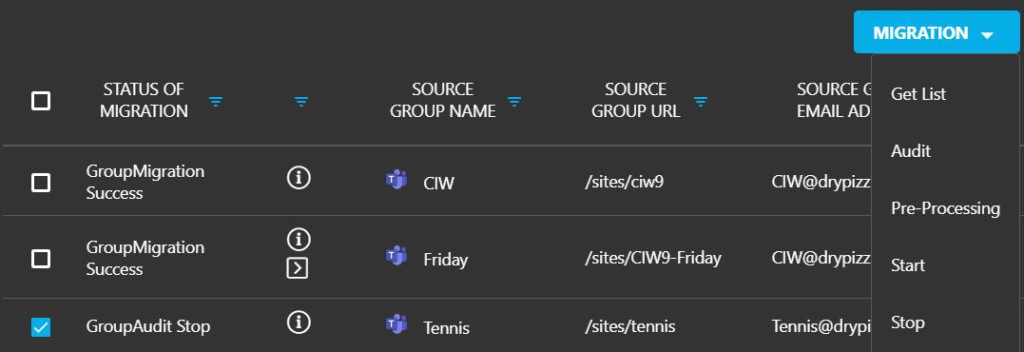
The Teams migration process involves three distinct phases:
Discovery Phase
The system scans your source environment to identify all Teams, their structures, memberships, and associated content. This provides a complete inventory for migration planning.
Preprocessing Phase
The preprocessing task recreates all Teams in the target, creates the associated SharePoint sites, and migrates the memberships (Owners and Members). This establishes the structure before content transfer.
Migration Phase
The system recreates channels and transfers the files, planners, conversations, and associated mailbox content. This is the main data transfer phase.
What Gets Migrated
Cloudiway's Teams migration transfers a comprehensive set of content and settings:
Team Structure
- Office 365 Groups
- Team logos and descriptions
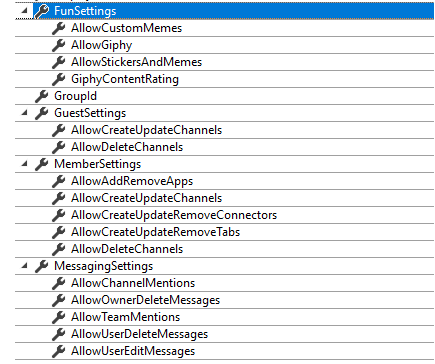
- Team settings
- Owners and Members
Channels
- Standard channels
- Private channels
- Conversations (1,000 most recent)
- Files and folders
Channel Tabs
- Conversations tabs
- Files tabs
- Planner tabs
- OneNote, Office docs, PDFs, websites
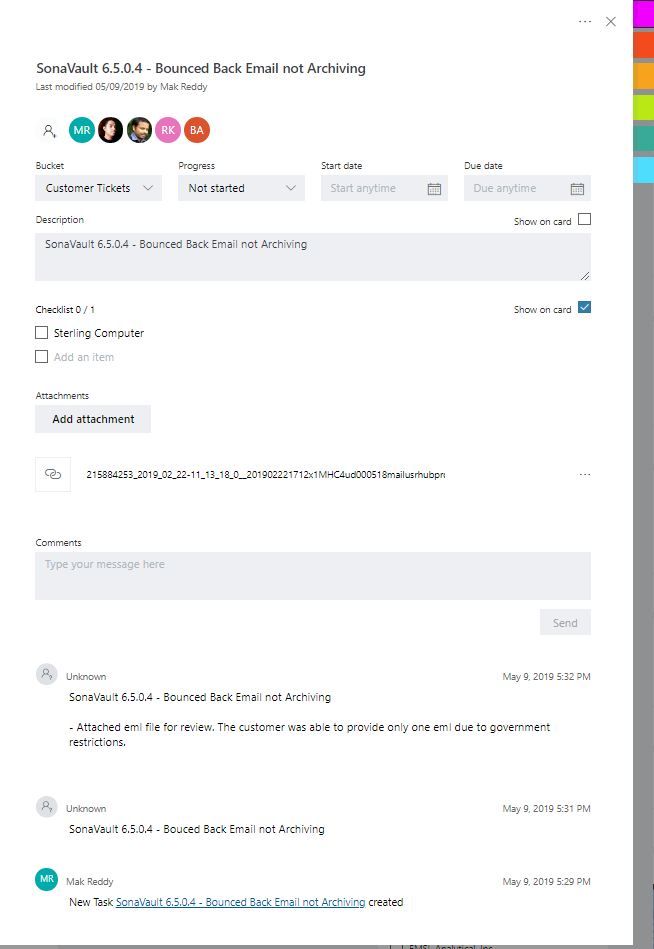
Microsoft Planner
- Task titles
- Buckets and labels
- Assignees and dates
- Checklists and descriptions
Private Chats
Private chat history is migrated and stored in users' OneDrive TeamsHistory folders, preserving the conversation record for reference.
What Doesn't Transfer
Due to Microsoft API limitations and platform constraints, the following items cannot be migrated:
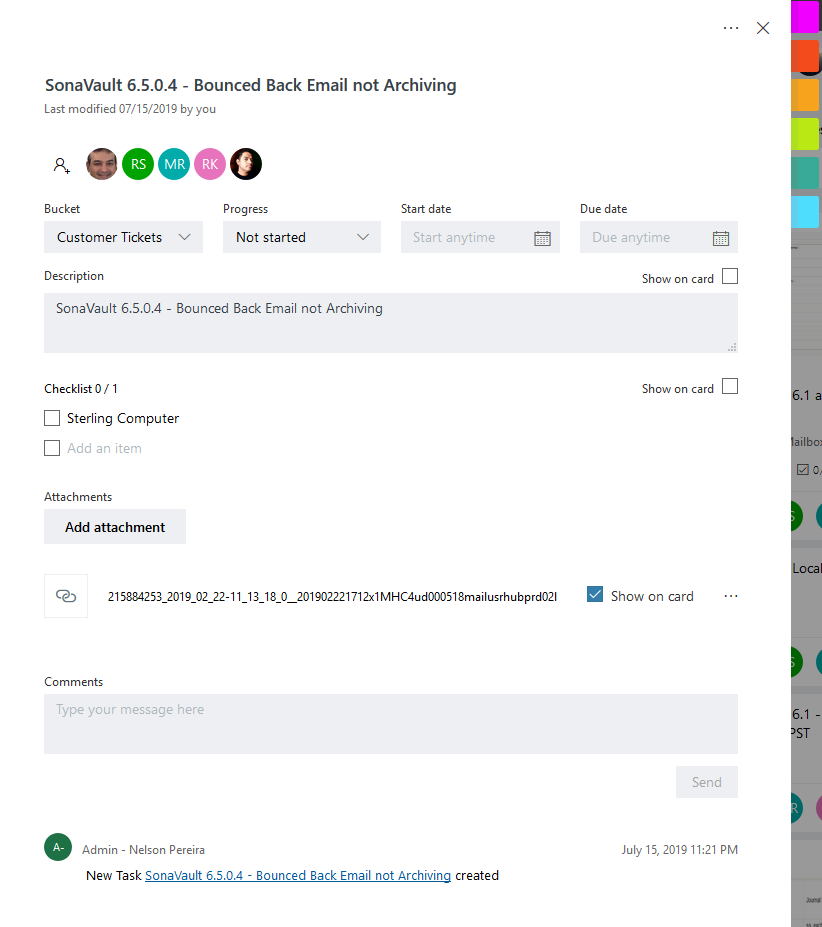
Planner Limitations
Best Practices
Run Discovery First
Always run a complete discovery before planning your migration timeline. This identifies all Teams and their sizes.
Migrate in Batches
For large environments, migrate Teams in logical batches (by department, project, or size) rather than all at once.
Communicate with Users
Inform users about conversation history limits and items that won't migrate so they can preserve critical information beforehand.