Google Sites: Steps to Whitelist Cookies
Required cookie configuration for migrating Google Sites to SharePoint Online.
Overview
To migrate Google Sites to SharePoint Online via Cloudiway, you must whitelist cookies. This process enables Cloudiway to authenticate with Google Sites and access the content for migration.
Timing is Critical
How to add cookies correctly
Preconditions: on Chrome
Install the extension EditThisCookie (fork) - Chrome Web Store
Allow this extension in Incognito mode
The issue no longer exists when following these steps in order:
- Open an Incognito window
- Open sites.google.com
- Sign in with the migration account
- Copy the cookies
- Paste the cookies copied to the Source connector
- Start the job (Audit, Migration)
- Confirm that it works fine (there's no Error "Unauthenticated Exception. The cookies are not valid.")
- Close the Incognito windows
As per the tests performed by our team, without Closing the Incognito windows, the cookies are valid maximum 20 minutes until the error appears.
Enable Chrome Extension in Incognito Mode
1. Open Google Chrome.
2. Click the three-dot menu (Customize and control Google Chrome) in the top-right corner.
3. Go to Extensions, then click Manage Extensions (or type chrome://extensions in the address bar and hit Enter).
4. Find the extension you want to enable and click the Details button.
5. Scroll to the bottom of the details page and toggle on the option that says Allow in Incognito.
6. The extension should now be available in an Incognito window.
Prerequisites
- Google Chrome browser installed
- Access to the Google Sites you want to migrate
- Cloudiway account with a Google connector configured
- Admin access to Google Workspace
Step-by-Step Process
Install Browser Extension
Install the "EditThisCookie" extension from the Chrome Web Store.
Search for "EditThisCookie" in the Chrome Web Store and click "Add to Chrome".
Access Google Sites
Visit your Google Sites and log in with your admin credentials.
Modern Sites: sites.google.com/new
Classic Sites: sites.google.com/classic
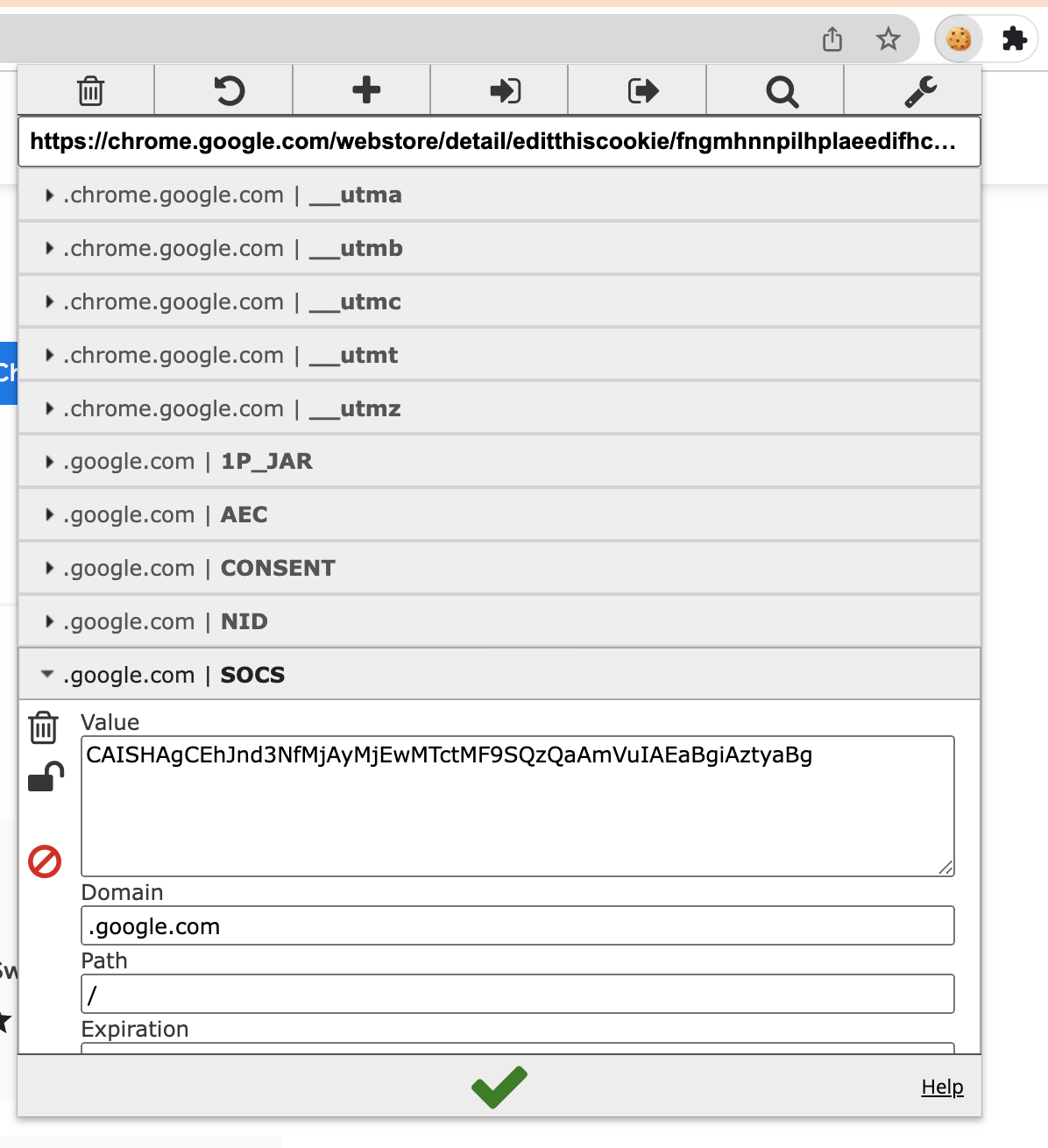
Open the Extension
After logging into Google Sites, click the EditThisCookie extension icon in your browser toolbar to open its interface.
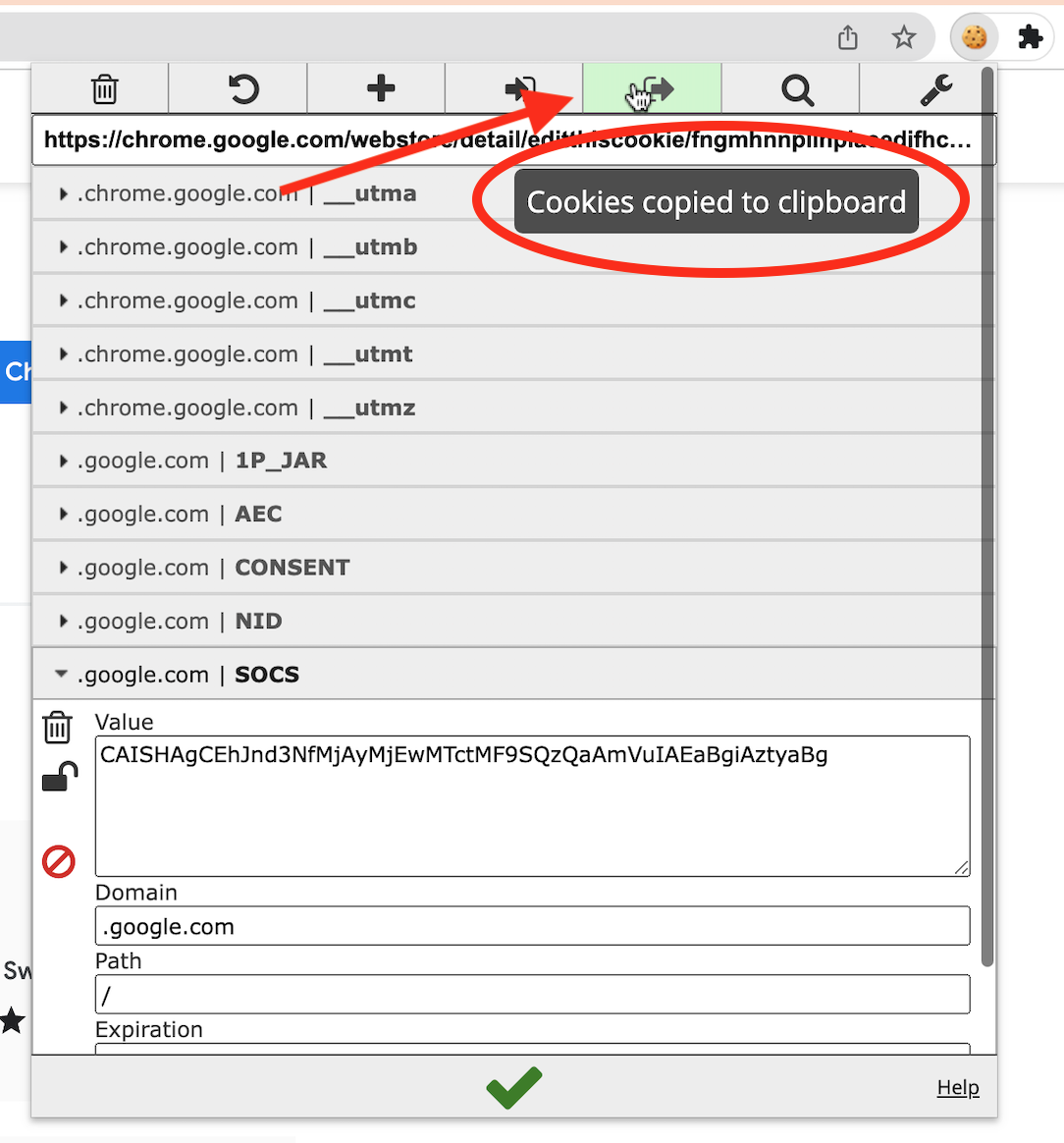
Copy Cookies
Click the copy cookies button within the extension to retrieve your authentication cookies.
Note: The cookies contain your authentication tokens. Keep them secure.
Navigate to Connectors
Go to your Cloudiway project's connectors list and locate your Google connector. Select the "Add cookies" button.
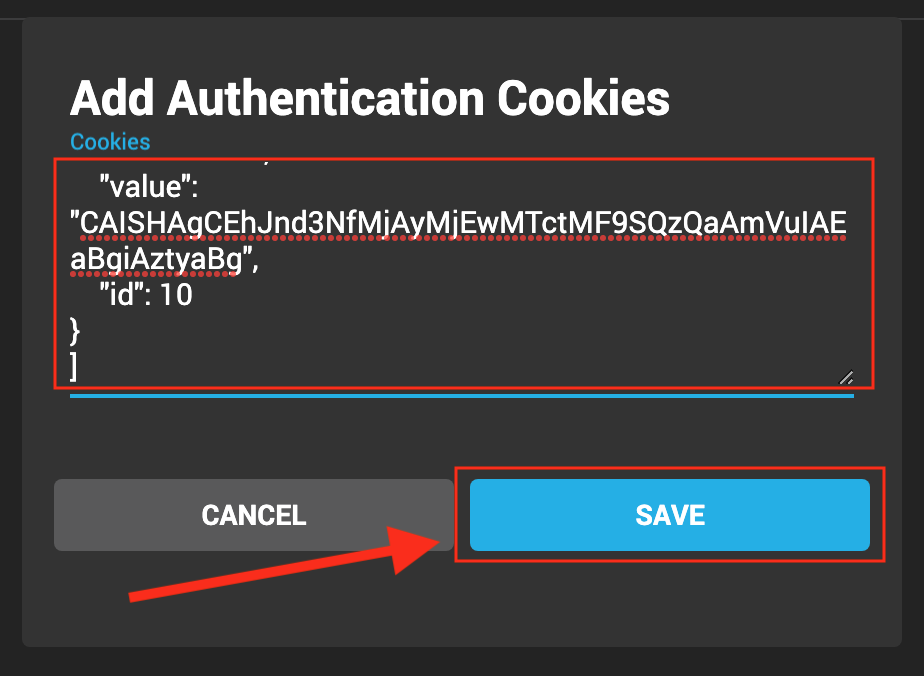
Save Cookies
Paste the copied cookies into the designated field and click save to complete the process.
Verification
Once completed, you can start scheduling Google Sites migration jobs:
- Run the Get List job to discover your Google Sites
- Execute the Audit to analyze sites
- Run Pre-processing to prepare target sites
- Start the Migration
Cookie Expiration
Screenshots