This guide explains how to configure a Google Workspace connector in Cloudiway and set up the necessary Google API feeds in the Google Admin Console. This configuration is required for migrations to and from Google Workspace.
Overview
A Google Workspace connector allows Cloudiway to access your Google domain's data including emails, calendars, contacts, Drive files, Sites, and Chat. You can use the connector as either a source (migrating from Google) or target (migrating to Google).
Two Configuration Options
You can either use Cloudiway's predefined service account (faster setup) or create your own custom service account (more control). This guide covers both options.
Prerequisites
Before configuring the connector, ensure you have:
- Super Admin access to Google Workspace Admin Console
- Google Cloud Console access (for custom service account)
- A valid Cloudiway account with an active project
- The migration account credentials (email and password)
Step 1: Create the Connector
- Log in to the Cloudiway Portal
- Navigate to Connectors in the left menu
- Click + New Connector
- Select Google Workspace (or G Suite) as the connector type
- Enter a descriptive name for your connector (e.g., "Google Source - Company Domain")
- Choose the connector role:
- Source - Migrating data FROM Google Workspace
- Target - Migrating data TO Google Workspace
- Select the migration products you need (Mail, Drive, Sites, Chat, etc.)
Step 2: Configure Required Fields
Complete the following configuration fields:
Domain Configuration
| Field | Description | Example |
|---|---|---|
| Domain Names | Primary and secondary domains to manage | company.com, company.org |
| Migration Account | Super Admin email for API operations | [email protected] |
| Migration Account Password | Password that won't change during migration | ••••••••• |
Super Admin Recommended
Additional Fields (for Sites and Groups)
If migrating Google Sites or Groups, also configure:
- Phone Number - Required for 2-step verification if enabled
- Favorite Logon Location - Helps avoid Google security alerts
Service Account Configuration
Choose one of these options:
Option A: Cloudiway Service Account
Use Cloudiway's pre-configured service account for faster setup.
Client ID: 114818336788408865729
Option B: Custom Service Account
Create your own for full control. See our service account guide.
Provide: Client ID, Private Key JSON
Step 3: Set Up Domain-Wide Delegation
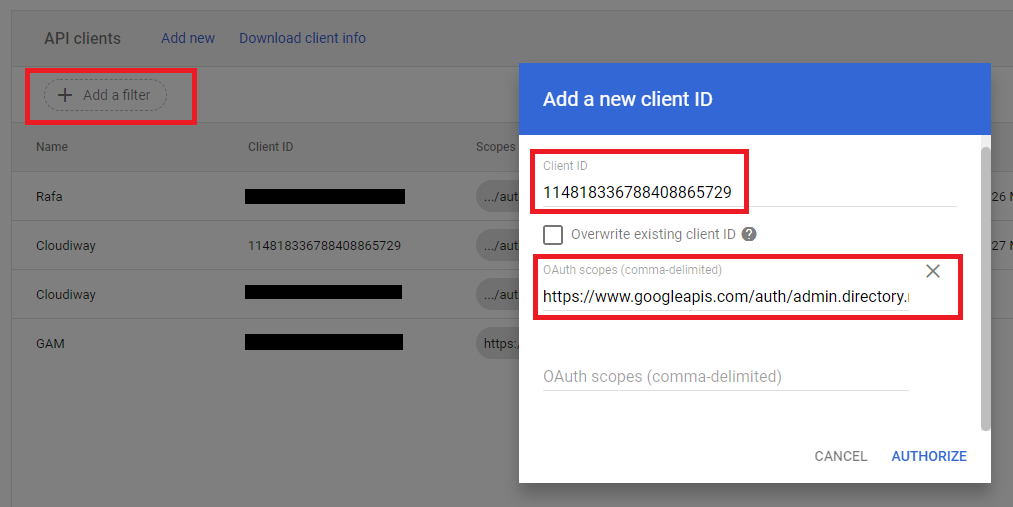
You must authorize the service account to access your domain's data through domain-wide delegation:
- Sign in to the Google Admin Console
- Navigate to Security → Access and data control → API Controls
- Click Manage Domain Wide Delegation
- Click Add new
- Enter the Client ID:
- For Cloudiway's account:
114818336788408865729 - For custom account: Your service account's client ID
- For Cloudiway's account:
- Paste the required OAuth Scopes (see next section)
- Click Authorize

Propagation Time
Step 4: OAuth Scopes by Migration Type
Copy and paste the appropriate OAuth scopes based on your migration needs. Each scope must be separated by a comma.
Important Notes About Scopes
- Some scopes require slashes (/) at the end and others don't — copy the strings exactly as shown.
- If you add another scope later, existing scopes will be removed — add the whole list at once.
- Paste the complete list for your scenario in a single operation.
- Copy all needed scope blocks to notepad first, then paste into the OAuth Scopes field.
- Migrating more than one product? Combine the scope blocks for all the products you're migrating (for this connector's role) into one list and paste them together. Saving the delegation replaces the previous scopes, so pasting blocks one at a time will drop the earlier ones. Remove any duplicate scopes and paste the full combined list in a single step.
Understanding the Permission Model
- Source (read-only by design): All SOURCE scenarios use read-only scopes. No data is written to your Google Workspace during export.
- Target (write required): TARGET and provisioning scenarios require write scopes to create mailboxes, files, spaces, and memberships.
- Least-privilege principle: Grant only the scope blocks for the products and direction you are migrating — do not apply all scopes at once.
- Broad scopes when necessary:
https://mail.google.com/(full mailbox access) is required by the TARGET Mail migration for message deletion on re-run and send-as for signatures. It is requested only where a specific feature needs it.
SOURCE — Migration FROM Google Workspace
Mail (Gmail, Calendar, Contacts, Tasks)
| Permission | Why it's needed |
|---|---|
gmail.imap_admin | Read mailbox content over IMAP using admin impersonation |
gmail.readonly | Read messages and their metadata |
gmail.labels | Read and map labels (folders) |
calendar | Read events plus calendar sharing/delegation settings |
contacts.readonly | Read contacts (People API) |
tasks.readonly | Read task lists |
admin.directory.user.readonly | Look up and list users for mapping |
admin.directory.group.readonly | List groups and their members |
admin.directory.resource.calendar.readonly | List calendar resources (rooms, equipment) |
https://www.googleapis.com/auth/gmail.imap_admin,
https://www.googleapis.com/auth/gmail.readonly,
https://www.googleapis.com/auth/gmail.labels,
https://www.googleapis.com/auth/calendar,
https://www.googleapis.com/auth/contacts.readonly,
https://www.googleapis.com/auth/tasks.readonly,
https://www.googleapis.com/auth/admin.directory.user.readonly,
https://www.googleapis.com/auth/admin.directory.group.readonly,
https://www.googleapis.com/auth/admin.directory.resource.calendar.readonly,
Google Drive / Shared (Team) Drive
| Permission | Why it's needed |
|---|---|
drive.readonly | List and download files/folders, metadata, permissions, revisions |
admin.directory.user.readonly | Enumerate users for mapping |
admin.directory.group.readonly | Expand groups into users when reading permissions |
drive | Automatically grant the migration account organizer rights on all Shared Drives. If omitted, you must grant organizer access manually. |
https://www.googleapis.com/auth/drive.readonly,
https://www.googleapis.com/auth/admin.directory.user.readonly,
https://www.googleapis.com/auth/admin.directory.group.readonly,
Optional — add only if you want auto-organizer rights on all Shared Drives:
https://www.googleapis.com/auth/drive,Google Sites (classic)
| Permission | Why it's needed |
|---|---|
sites.google.com/feeds/ | List sites; export pages and attachments; read site/page ACLs (Access Control Lists) via the GData Feeds API |
drive.readonly | Download Drive content embedded in pages |
admin.directory.user.readonly | Resolve users referenced in ACLs |
admin.directory.group.readonly | Expand groups referenced in ACLs |
https://sites.google.com/feeds/,
https://www.googleapis.com/auth/drive.readonly,
https://www.googleapis.com/auth/admin.directory.user.readonly,
https://www.googleapis.com/auth/admin.directory.group.readonly,
Google Chat
| Permission | Why it's needed |
|---|---|
chat.spaces.readonly | List spaces and read their metadata |
chat.messages.readonly | Read messages (including time-filtered and deleted) |
chat.memberships | Read space memberships (Google provides no read-only variant for this scope) |
admin.directory.user.readonly | Cache users for member mapping |
drive.readonly | Download message attachments |
https://www.googleapis.com/auth/chat.spaces.readonly,
https://www.googleapis.com/auth/chat.messages.readonly,
https://www.googleapis.com/auth/chat.memberships,
https://www.googleapis.com/auth/admin.directory.user.readonly,
https://www.googleapis.com/auth/drive.readonly,
Google Vault (eDiscovery)
| Permission | Why it's needed |
|---|---|
ediscovery | Create matters, run counts and exports, track operations (Mail/Chat/Drive/Groups corpora) |
devstorage.read_only | Download export archives from Cloud Storage |
admin.directory.user.readonly | Enumerate users |
admin.directory.group.readonly | Enumerate groups (Groups corpus) |
https://www.googleapis.com/auth/ediscovery,
https://www.googleapis.com/auth/devstorage.read_only,
https://www.googleapis.com/auth/admin.directory.user.readonly,
https://www.googleapis.com/auth/admin.directory.group.readonly,
Google Groups
| Permission | Why it's needed |
|---|---|
admin.directory.group.readonly | List groups and read members, expanding nested groups recursively |
devstorage.full_control | Full control of Cloud Storage resources |
https://www.googleapis.com/auth/admin.directory.group.readonly,
https://www.googleapis.com/auth/devstorage.full_control,
TARGET — Migration TO Google Workspace
Mail (Gmail, Calendar, Contacts, Tasks)
| Permission | Why it's needed |
|---|---|
gmail.insert | Import messages into the mailbox |
gmail.labels | Create labels (folders) |
https://mail.google.com/ | Delete messages on re-run/cleanup and use send-as for signatures. This is the broadest Gmail scope (full mailbox access) and is required because message deletion and send-as have no narrower alternative. |
calendar | Create/update events and write sharing/delegation |
contacts | Create/update contacts (People API) |
tasks | Create tasks |
gmail.settings.basic | Apply mailbox signature settings |
gmail.settings.sharing | Configure send-as for signatures |
admin.directory.resource.calendar.readonly | Read calendar resources |
admin.directory.user | Provision users and aliases in the target directory |
admin.directory.group | Create groups and add members in the target directory |
gmail.readonly | Read messages and metadata in the target mailbox |
gmail.imap_admin | Access target mailbox over IMAP using admin impersonation |
https://www.googleapis.com/auth/gmail.insert,
https://www.googleapis.com/auth/gmail.labels,
https://mail.google.com/,
https://www.googleapis.com/auth/gmail.settings.basic,
https://www.googleapis.com/auth/gmail.settings.sharing,
https://www.googleapis.com/auth/calendar,
https://www.googleapis.com/auth/contacts,
https://www.googleapis.com/auth/tasks,
https://www.googleapis.com/auth/admin.directory.resource.calendar.readonly,
https://www.googleapis.com/auth/admin.directory.user,
https://www.googleapis.com/auth/admin.directory.group,
https://www.googleapis.com/auth/gmail.readonly,
https://www.googleapis.com/auth/gmail.imap_admin,
Google Drive / Shared (Team) Drive
| Permission | Why it's needed |
|---|---|
drive | Upload files/folders, create Shared Drives, set permissions, transfer ownership, add the migration account as organizer |
https://www.googleapis.com/auth/drive,Google Chat (Google Space)
| Permission | Why it's needed |
|---|---|
chat.spaces | Create and set up spaces |
chat.import | Import mode (30-day window, bulk import) |
chat.memberships | Add members and assign roles |
chat.messages | Post messages, threads, and attachments |
admin.directory.user.readonly | Resolve member users |
drive | Upload attachments to the target space |
https://www.googleapis.com/auth/chat.spaces,
https://www.googleapis.com/auth/chat.import,
https://www.googleapis.com/auth/chat.memberships,
https://www.googleapis.com/auth/chat.messages,
https://www.googleapis.com/auth/admin.directory.user.readonly,
https://www.googleapis.com/auth/drive,
Coexistence
GALSync
https://apps-apis.google.com/a/feeds/user/,
https://apps-apis.google.com/a/feeds/groups/,
https://apps-apis.google.com/a/feeds/policies/,
https://www.google.com/m8/feeds/,
https://apps-apis.google.com/a/feeds/alias/,
https://www.googleapis.com/auth/admin.directory.user,
https://www.googleapis.com/auth/admin.directory.user.readonly,
https://www.googleapis.com/auth/directory.readonly,
https://www.googleapis.com/auth/contacts,
Free/Busy
https://www.googleapis.com/auth/calendar.freebusy,Mail Forwarders
https://www.googleapis.com/auth/gmail.settings.basic,
https://www.googleapis.com/auth/gmail.settings.sharing,