How to Open a Support Ticket
Use the Cloudiway Support Bot to describe your issue and create a support ticket with all the necessary information.
Prerequisites
Before Opening a Ticket
Complete these steps before contacting support:
- 1 Create your Cloudiway account
- 2 Set up your migration project
- 3 Purchase necessary licenses
- 4 Review the relevant admin guide documentation
Ticket Submission Flow
Accessing the Support Bot
You can access the Cloudiway Support Bot in two ways:
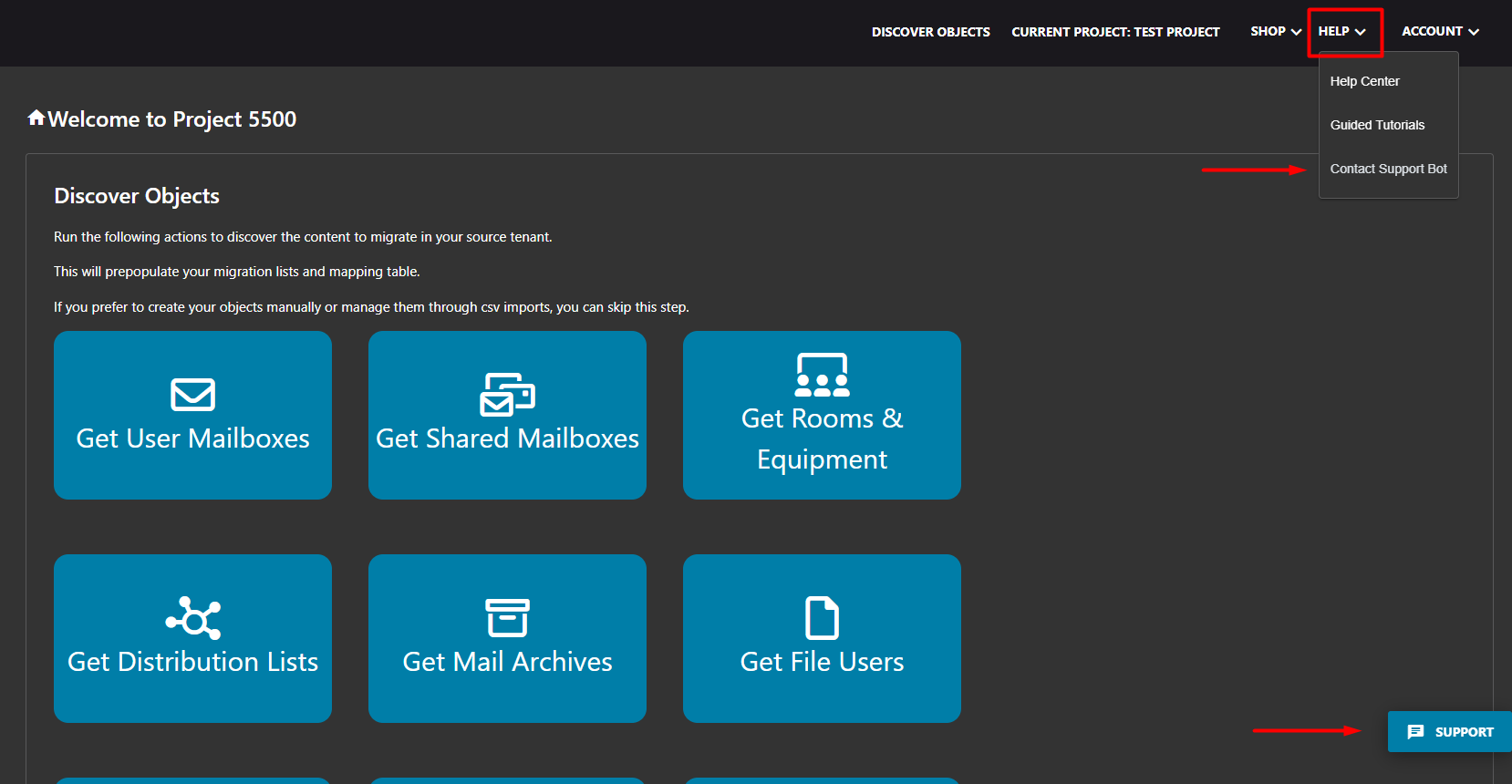
Option 1: HELP Menu
Navigate to HELP in the top menu, then click Contact Support Bot.
Option 2: Support Button
Click the Support button located at the bottom-right corner of any page.
How the Bot Works
Important
What to Expect
- • The bot will ask questions to understand your issue and identify the affected product
- • It may provide solutions from our knowledge base that could resolve your issue immediately
- • When you're ready to open a ticket, simply type "open a support ticket" or similar
- • The bot will generate a draft ticket based on your conversation for your review
- • You can edit the draft before confirming submission
Steps to Open a Ticket
Open the Support Bot
Click HELP → Contact Support Bot in the top menu, or click the Support button at the bottom-right corner of the page.
Describe Your Issue
Explain your problem to the bot. It will ask follow-up questions to understand your issue and may suggest solutions from the knowledge base.
Request to Open a Ticket
When you're ready to escalate to support, type "open a support ticket", "create a ticket", or similar. The bot will ask you to select the relevant product.
Review the Draft
The bot will generate a ticket draft with a subject and description based on your conversation. Review it carefully.
Edit or Confirm
You can type "yes" to submit, "no" to cancel, or "edit" to modify the subject or body before submission. You can also provide an alternate email address.
Information to Provide
Depending on the Product
The system will request specific information:
- • Impacted object address: Mailbox, drive, team, or site address
- • Error message: Exact error text for analysis
- • Global issues: Provide one specific example to analyze
Important
Maximizing the Bot Window
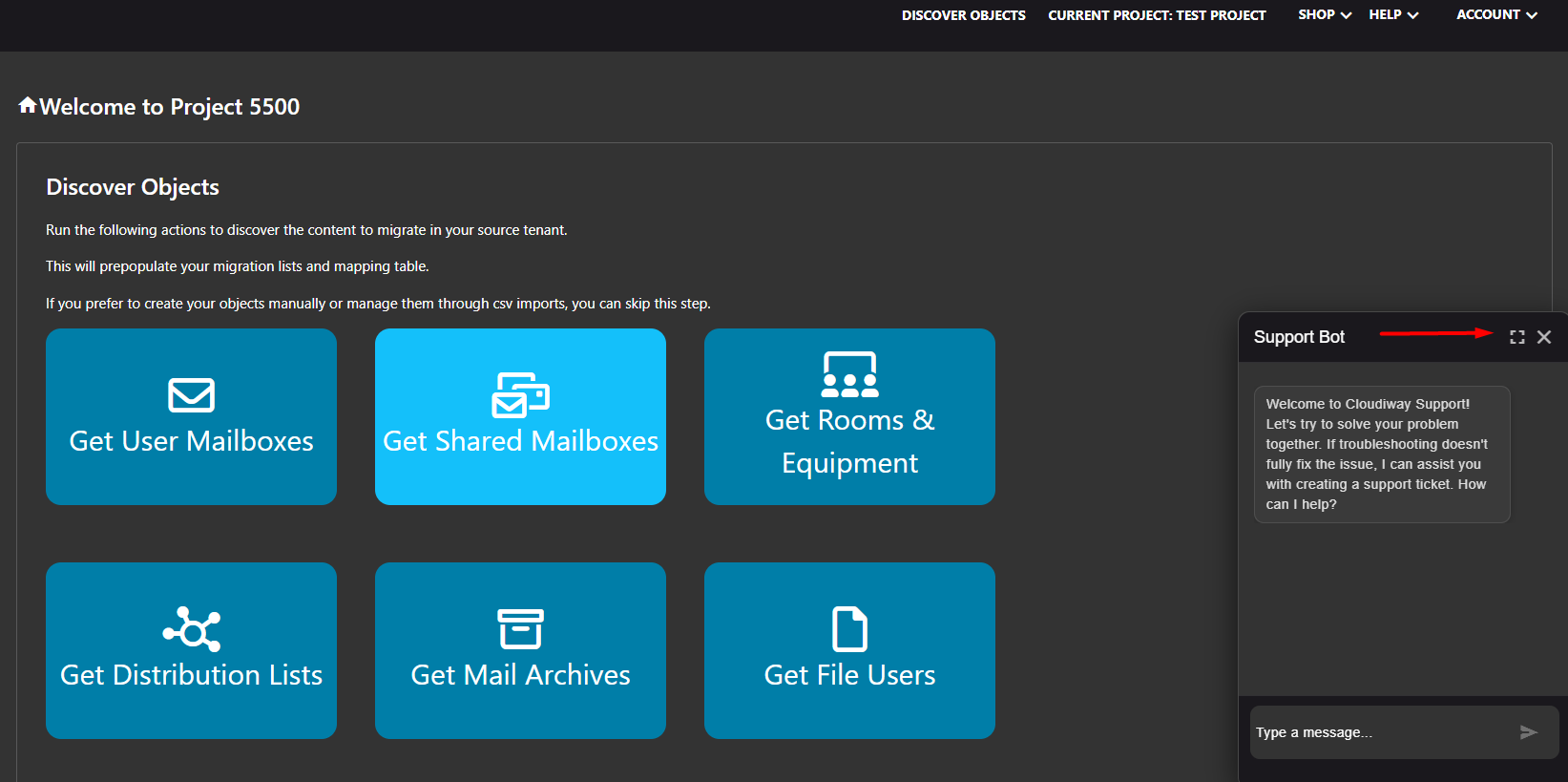
For a better experience, you can expand the bot window by clicking the maximize icon in the top-right corner of the chat window.