Invite Users and Assign Roles
Add team members to your Cloudiway collection or projects with appropriate access levels.
Overview
Cloudiway allows you to collaborate with team members by inviting them to your collection or specific projects. Each user can be assigned a role that determines their access level and capabilities within the platform.
Access Hierarchy
Available Roles
Choose from three role levels based on what each user needs to accomplish:
Viewer
Viewers have read-only access and can:
- • View project details
- • Access license summary
- • View migration logs
- • Monitor progress
Contributor
Contributors can perform migrations and:
- • Everything a Viewer can do
- • Start and manage migrations
- • Configure migration settings
- • Run audits and preprocessing
Administrator
Administrators have full access and can:
- • Everything a Contributor can do
- • Invite and manage users
- • Manage connectors and settings
- • Purchase and manage licenses
- • Delete projects and data
Add Users to Collection
Adding users to your collection gives them access to all projects within the collection:
- 1 Access Account Settings
Navigate to ACCOUNT → Settings
- 2 Click Add User
Click the ADD USER button
- 3 Enter User Details
Enter the user's email address
- 4 Select Role
Choose Viewer, Contributor, or Administrator
- 5 Send Invitation
An invitation email will be sent to the user
Invite to Specific Project
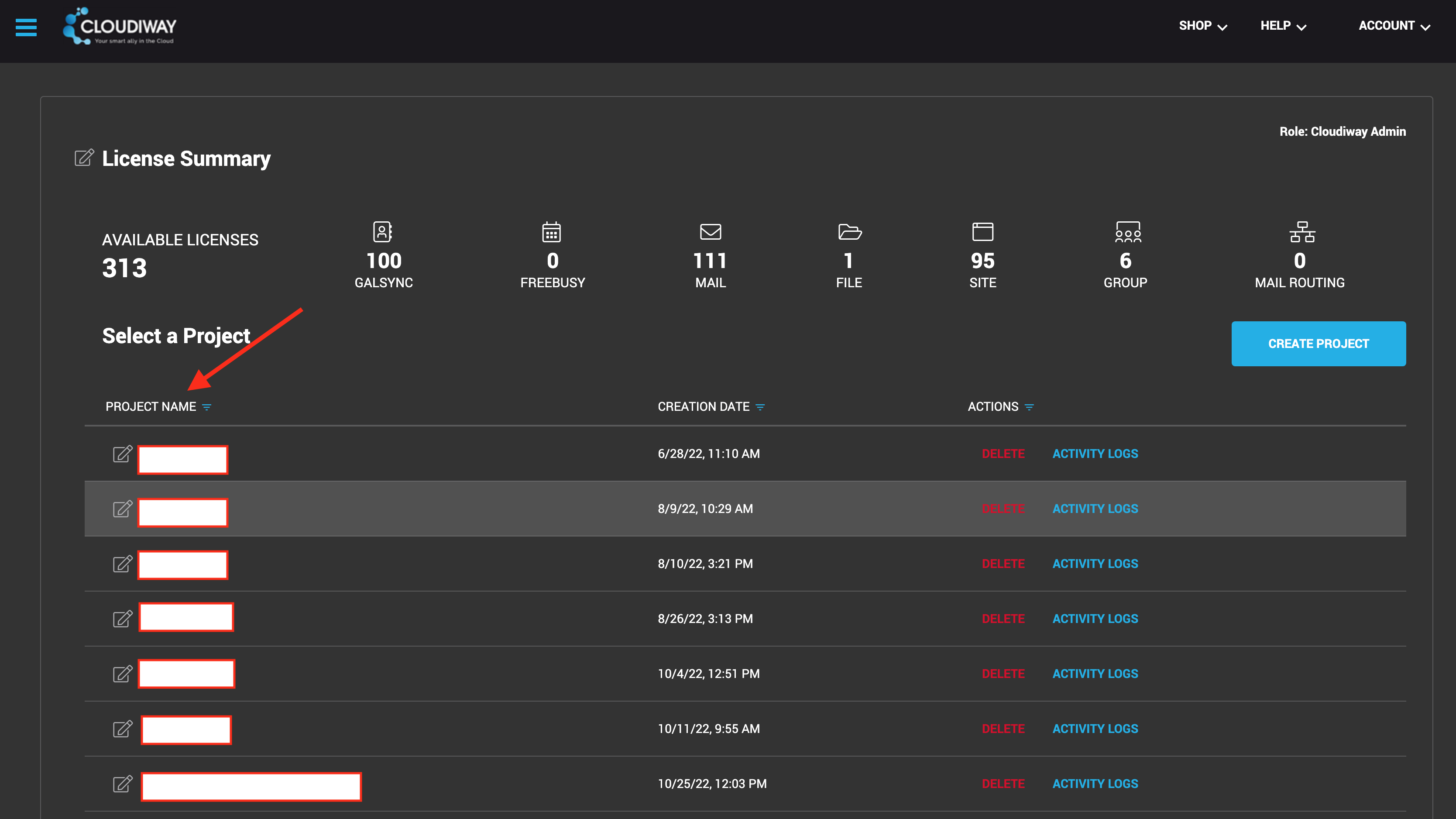
For more granular access control, invite users to specific projects only:
- 1 Open Project List
Navigate to your project list
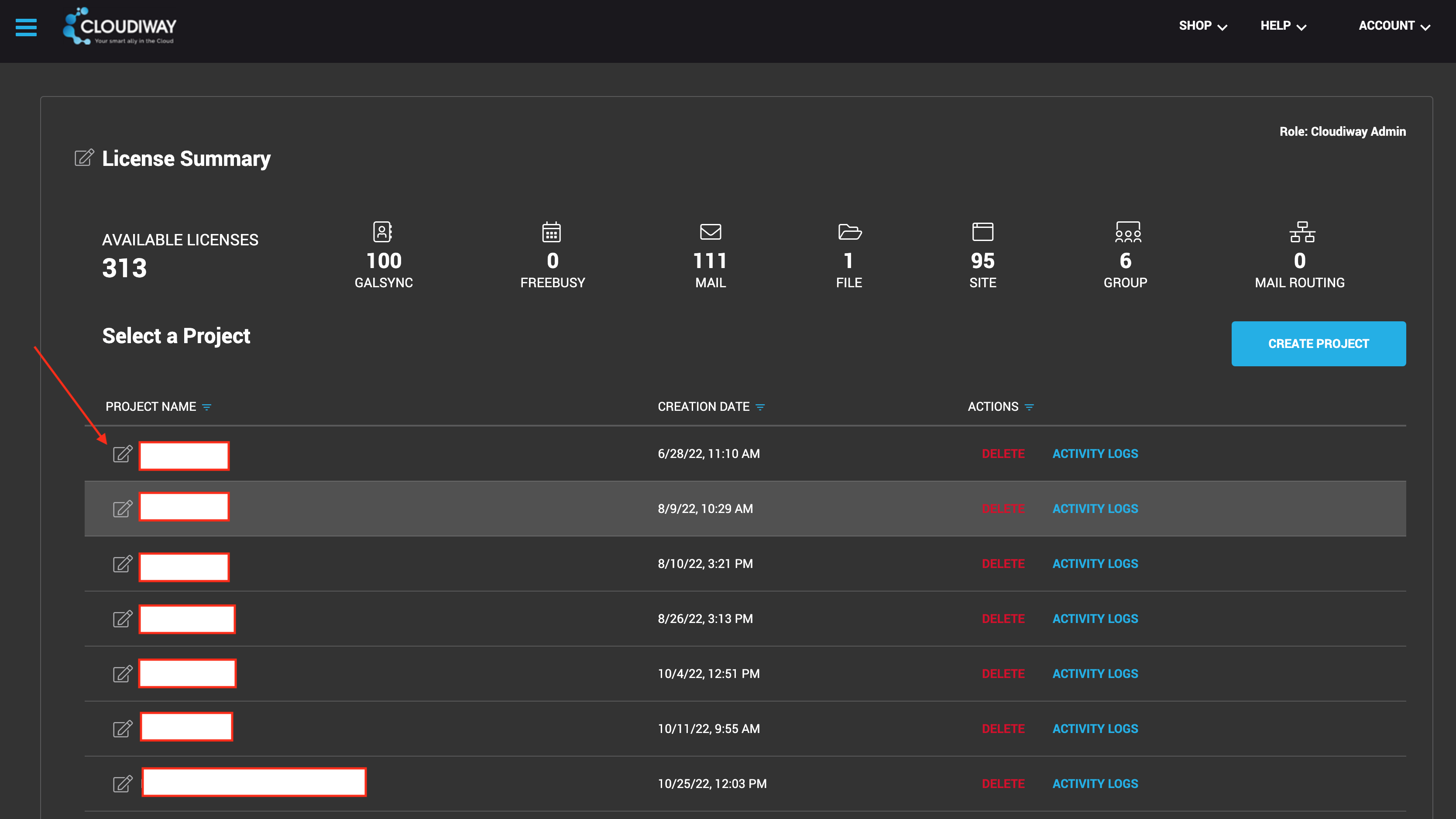
- 2 Edit Project
Click the edit button for the desired project
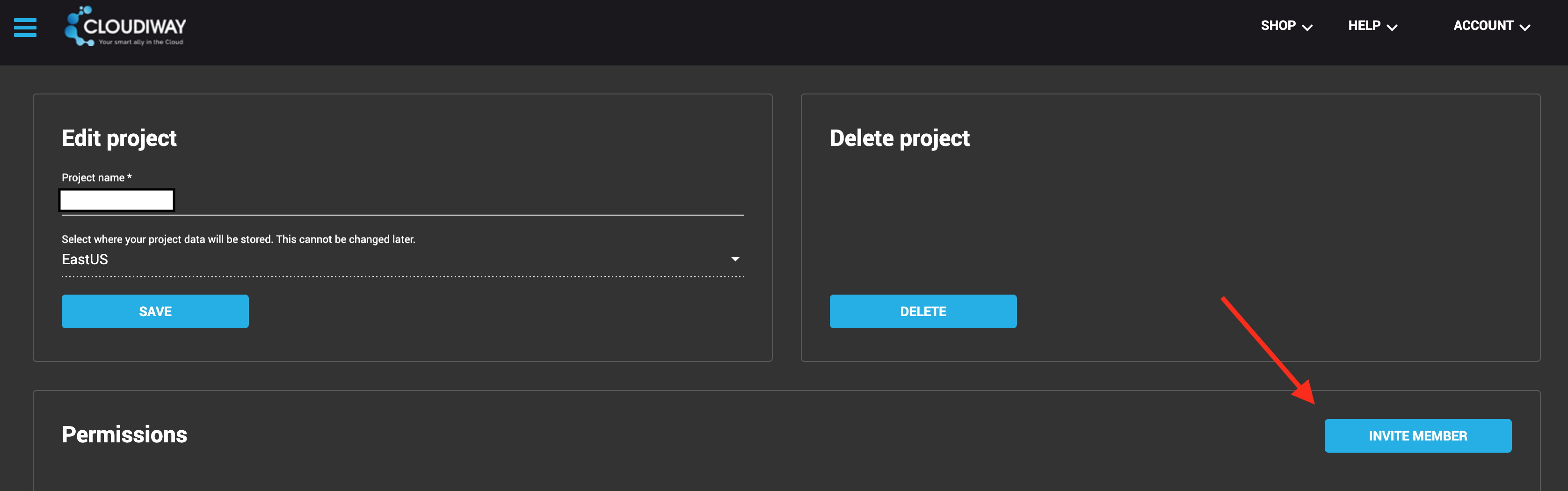
- 3 Invite a Member
Click Invite a member
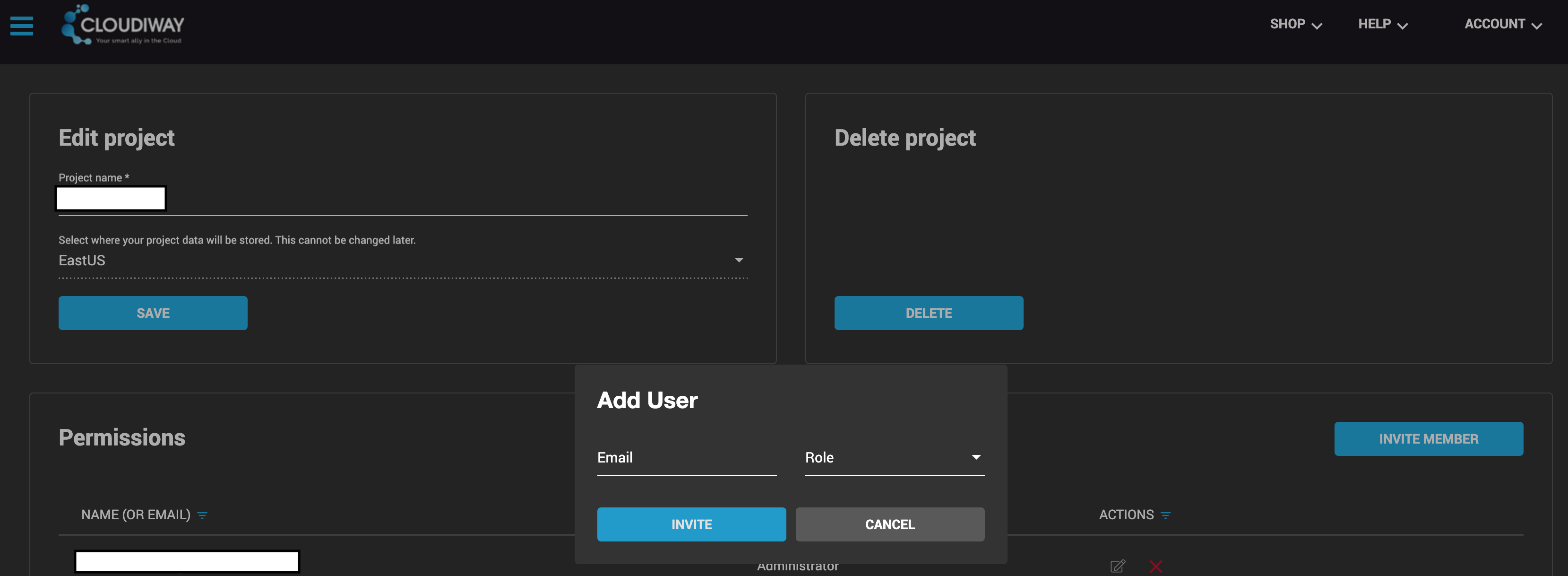
- 4 Enter Details and Role
Enter the user's email and select their role
Important Considerations
Invitation Emails Don't Expire
Invitation emails remain valid indefinitely. Users can accept the invitation at any time.
Existing Account Alert
If an invited user already has an active collection on Cloudiway, you'll receive an alert. The user must delete their existing account before the invitation can be accepted.
Role Selection Best Practices
Stakeholders, managers who need to monitor progress
IT staff performing migrations
Project leads, account owners
Screenshots