License Management
Understanding Cloudiway licensing: types, limits, and best practices for managing your migration licenses.
Overview
Cloudiway uses a per-user licensing model for migrations. Each user being migrated requires one license per migration type (mail, file, etc.). Understanding how licenses work helps you plan your migration budget effectively.
License Types
Cloudiway offers three licensing models with different capacities and restrictions:
Trial Licenses
FreeLimited licenses for testing and evaluation purposes.
- • 10 Contacts
- • 10 Mails
- • 10 Calendars
File
- • 100 MB total
Sites
- • Not available for trial
Teams
- • 10 messages per channel
- • 10 files per team
Standard Licenses
Full CapacityFull-featured licenses for production migrations.
50 GB
File
25 GB
Sites & Teams
25 GB
Nonprofit Licenses
DiscountedSpecial pricing for qualifying nonprofit organizations.
3 GB
File & Sites
3 GB
Consumption Rules
Understanding when licenses are consumed helps you plan your migration effectively:
When Licenses Are "Burned"
- Initial migration starts
License is consumed when you begin the first migration for a user
- Audit/pre-processing begins
Running an audit also consumes the license
Delta Pass Included
Once a license is consumed, you can run unlimited delta passes for 90 days before the license expires. This allows for staged migrations with multiple sync passes.
Non-Transferable
Licenses are non-transferable and cannot be reused if content is deleted or needs to be re-migrated. Plan your migration carefully to avoid consuming licenses unnecessarily.
Managing Licenses
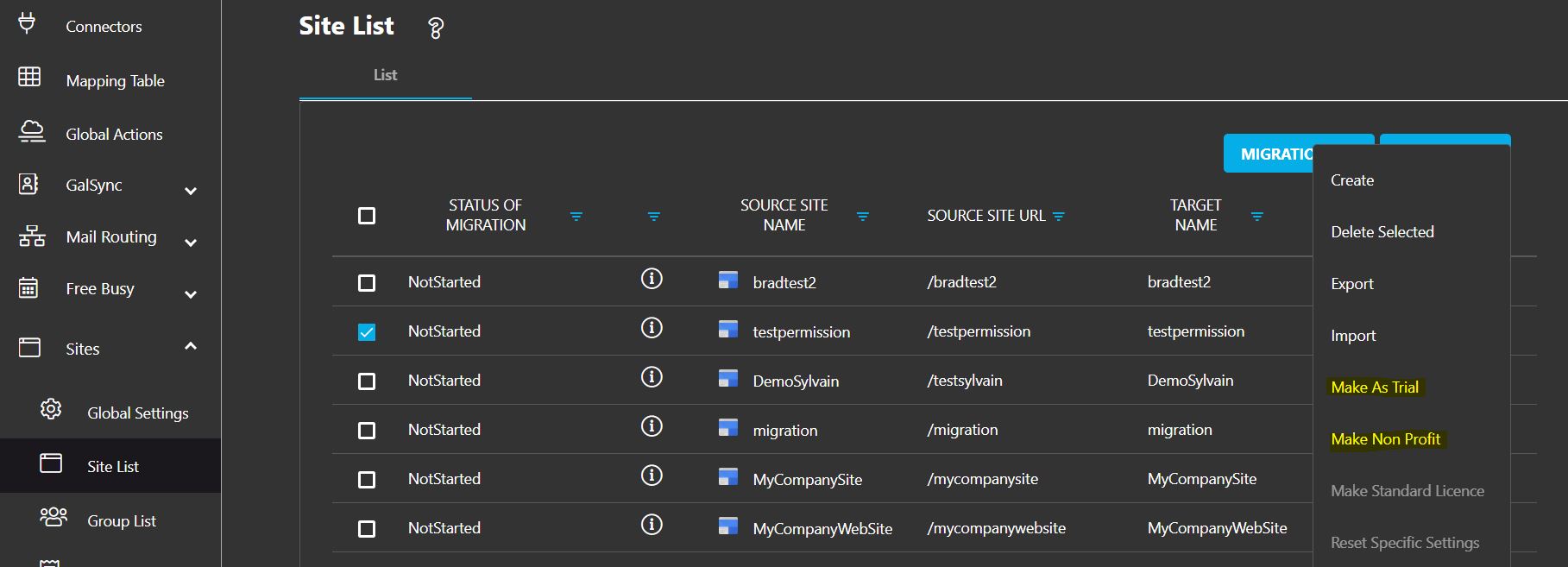
Before starting a migration, you can select the license type to use:
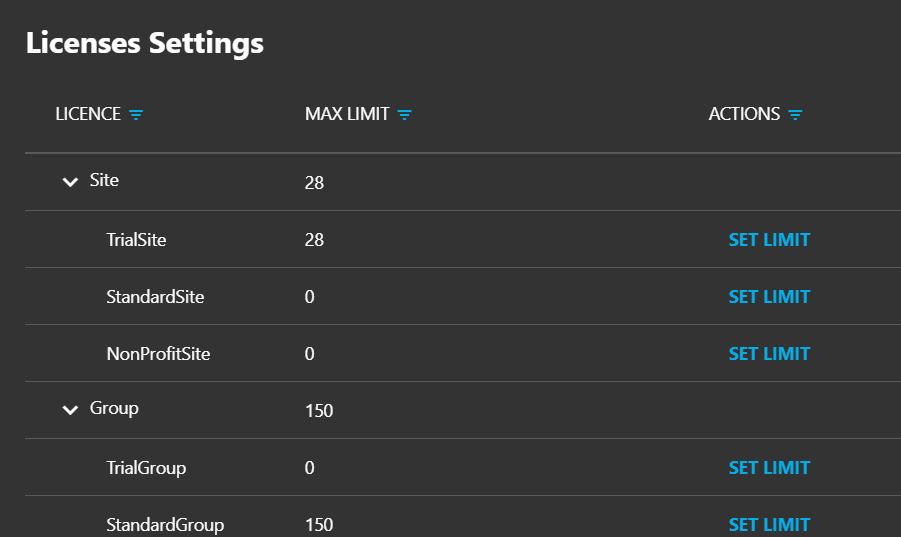
Check your license balance in the Cloudiway portal under Account Settings.
Before migration, choose between trial (for testing) or standard licenses. Standard is assigned by default.
Track license usage through the dashboard to stay within budget.
Project License Limits
Project administrators can control license consumption by setting project-level limits:
Setting Project Limits
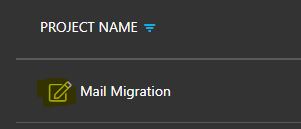
Navigate to Project Settings to limit the number of licenses that a project can consume. This helps:
- Control budget exposure per project
- Prevent accidental over-consumption
- Allocate licenses across multiple projects
Screenshots