Microsoft Teams Audit Script
Audit Microsoft Groups and Teams to analyze usage patterns and determine current status before migration.
Overview
This PowerShell script audits your Microsoft 365 Groups and Teams to help you understand their current usage status. Understanding activity levels helps prioritize which teams to migrate and identify inactive or obsolete teams that may not need migration.
Script Attribution
This script was originally sourced from Petri IT Knowledgebase and modified by Cloudiway to fix bugs and improve functionality.
What It Does
Groups & Teams Inventory
Identifies all Groups and Teams within your organization
Channel Activity
Counts messages and identifies most recent post dates
Mailbox Analysis
Reviews mailbox message volume and timestamps
SharePoint Status
Checks site creation status and file access dates
Report Generation
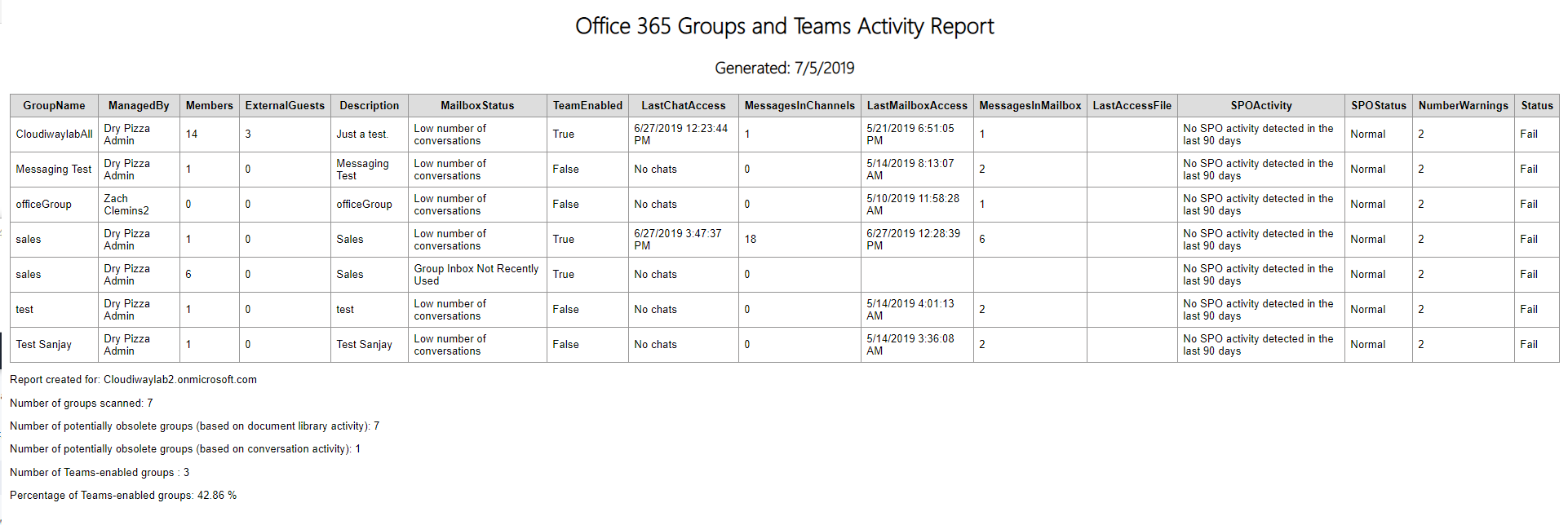
The script generates comprehensive reports in both HTML and CSV formats, making it easy to analyze and share audit results with stakeholders.
Prerequisites
Before running the script, install the required PowerShell modules:
Required Modules
1. SharePoint Online Module
Install-Module -Name Microsoft.Online.SharePoint.PowerShell
2. Microsoft Teams Module
Install-Module -Name MicrosoftTeams
Admin Permissions
You need Global Administrator or Teams Administrator permissions to run this audit script successfully.
Usage Instructions
Step-by-Step Execution
- 1 Open PowerShell
Run PowerShell as Administrator
- 2 Connect to SharePoint Online
Connect-SPOService -Url https://<tenantName>-admin.sharepoint.com
- 3 Connect to Microsoft Teams
Connect-MicrosoftTeams
- 4 Run the Audit Script
.\teams.ps1
- 5 Wait for Completion
The script will process all Groups and Teams. Duration depends on your organization's size.
Report Output
The script generates reports in the default location c:\temp:
Output Files
| Format | Default Path |
|---|---|
| HTML Report | c:\temp\GroupsActivityReport.html |
| CSV Data | c:\temp\GroupsActivityReport.csv |
Customizing Output Location
To change the report location, modify these variables in the script:
$ReportFile = "c:\temp\GroupsActivityReport.html"
$CSVFile = "c:\temp\GroupsActivityReport.csv"
Report Contents
- Group/Team name and description
- Member count
- Channel message counts
- Last activity dates
- SharePoint site status
- File access dates
Screenshots