Unable to Connect to Mailbox Target Error
Resolving authentication issues with the target Office 365 account.
Overview
Error Message
"Unable to connect to the mailbox in the TARGET: One or more errors occurred. (Error during Inbox folder binding: The specified object was not found in the store., Default folder Inbox not found.)"
Required Configuration
Root Cause
Authentication Problems
The error stems from authentication problems with the target migration account in Office 365, caused by one or more of these issues:
- • Missing or incorrect licensing
- • Absent or improper Azure application permissions
- • Insufficient migration account role assignments
- • Migration account not added as group/mailbox member before migration
Required Resolutions
1. Licensing
Assign an Office 365 E5 license to the migration account via the Microsoft 365 admin center.
Go to Microsoft 365 Admin → Users → Active Users → Select user → Licenses and apps
2. Azure Permissions
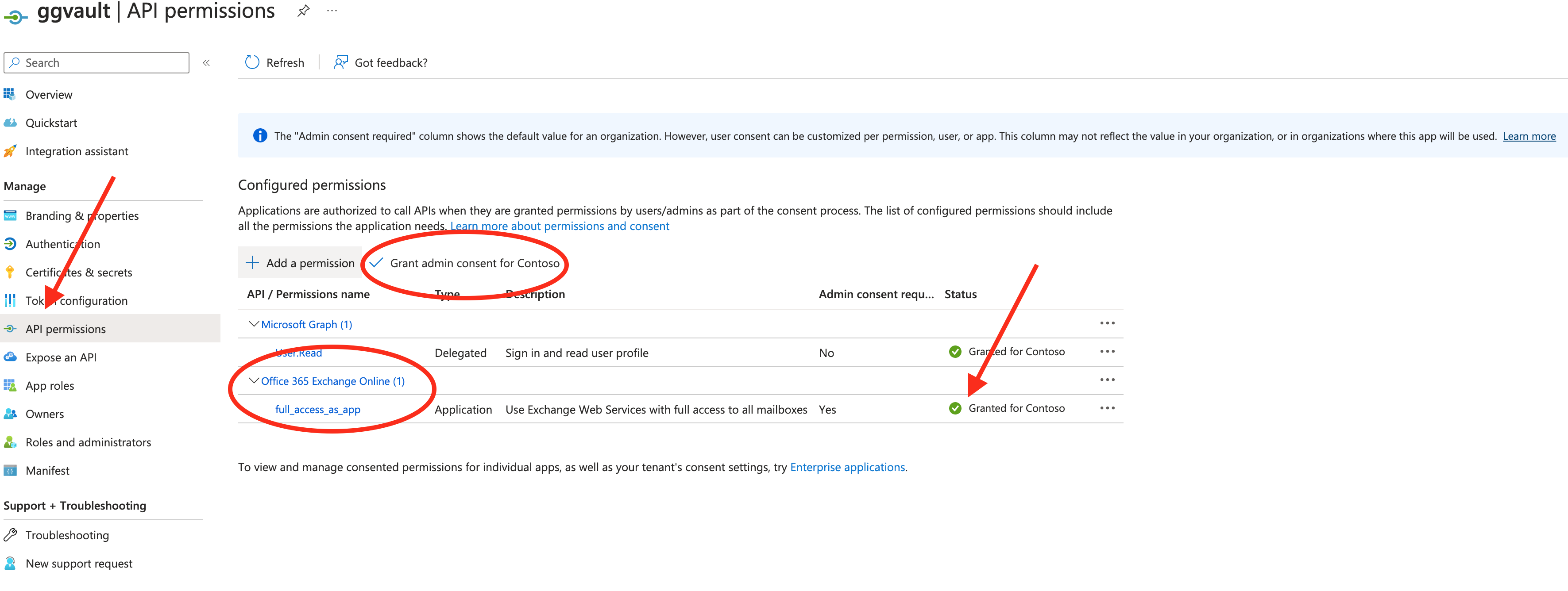
Configure Exchange Online app-only permission with "full_access_as_app" and grant admin consent through Azure application registration.
Azure Portal → App registrations → API permissions → Add permission → Exchange → Application permissions
3. Role Assignment
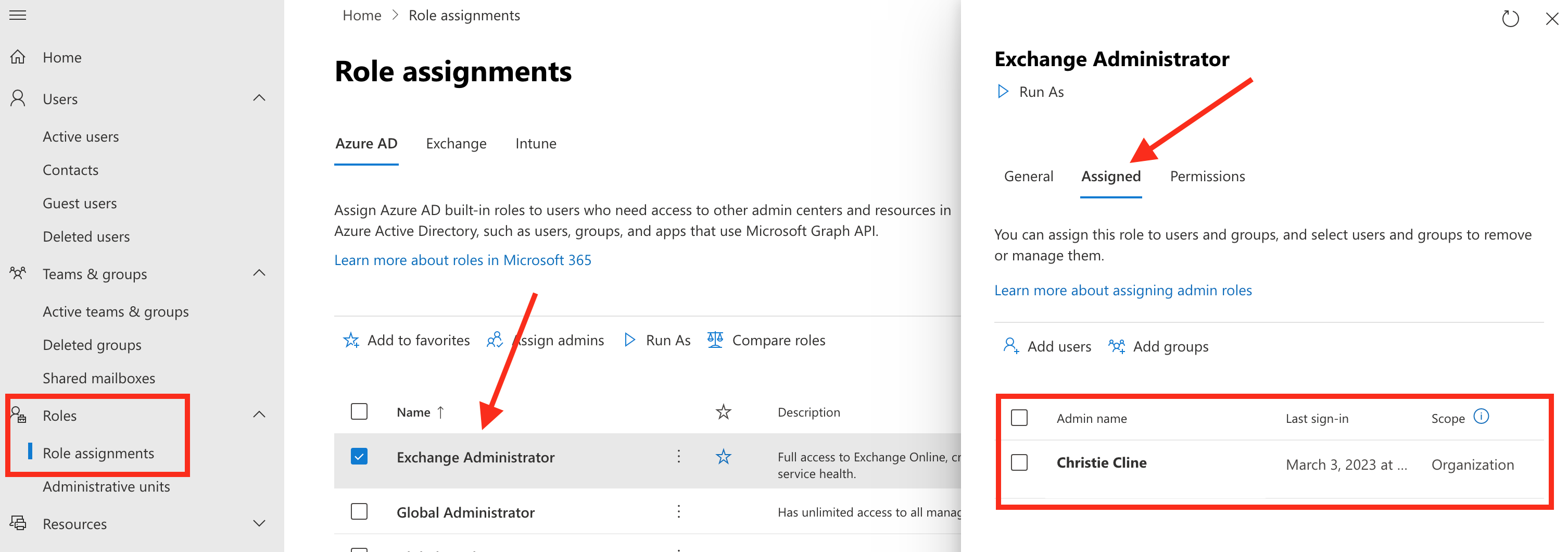
Grant the migration account an Exchange Administrator role in the Microsoft 365 admin portal.
Microsoft 365 Admin → Roles → Role assignments → Exchange Administrator → Add user
4. Group Membership
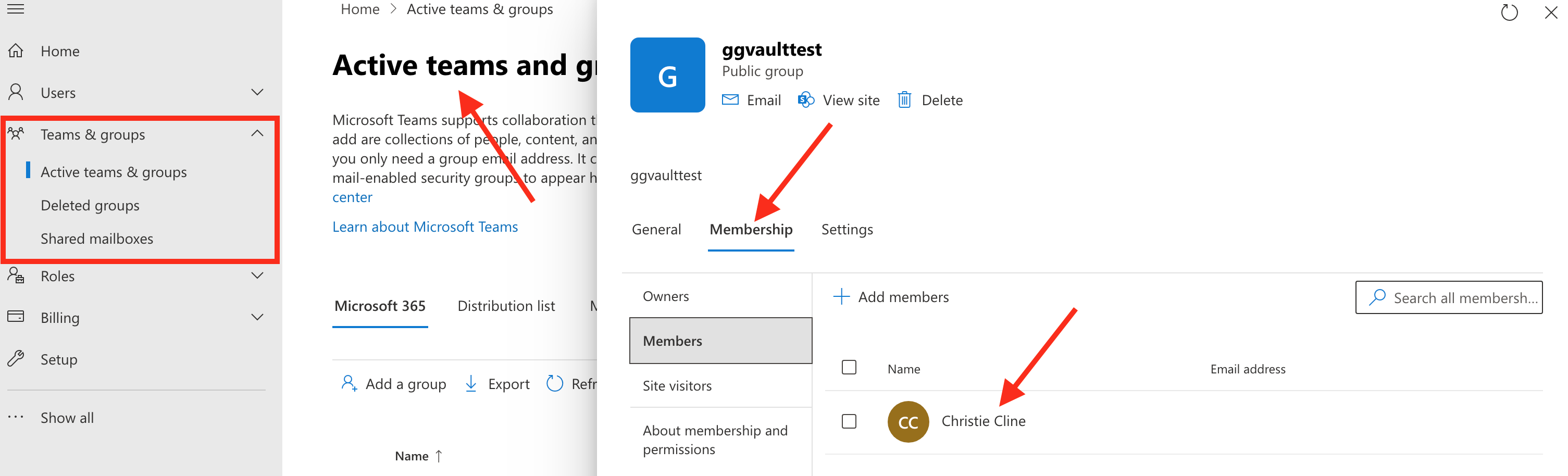
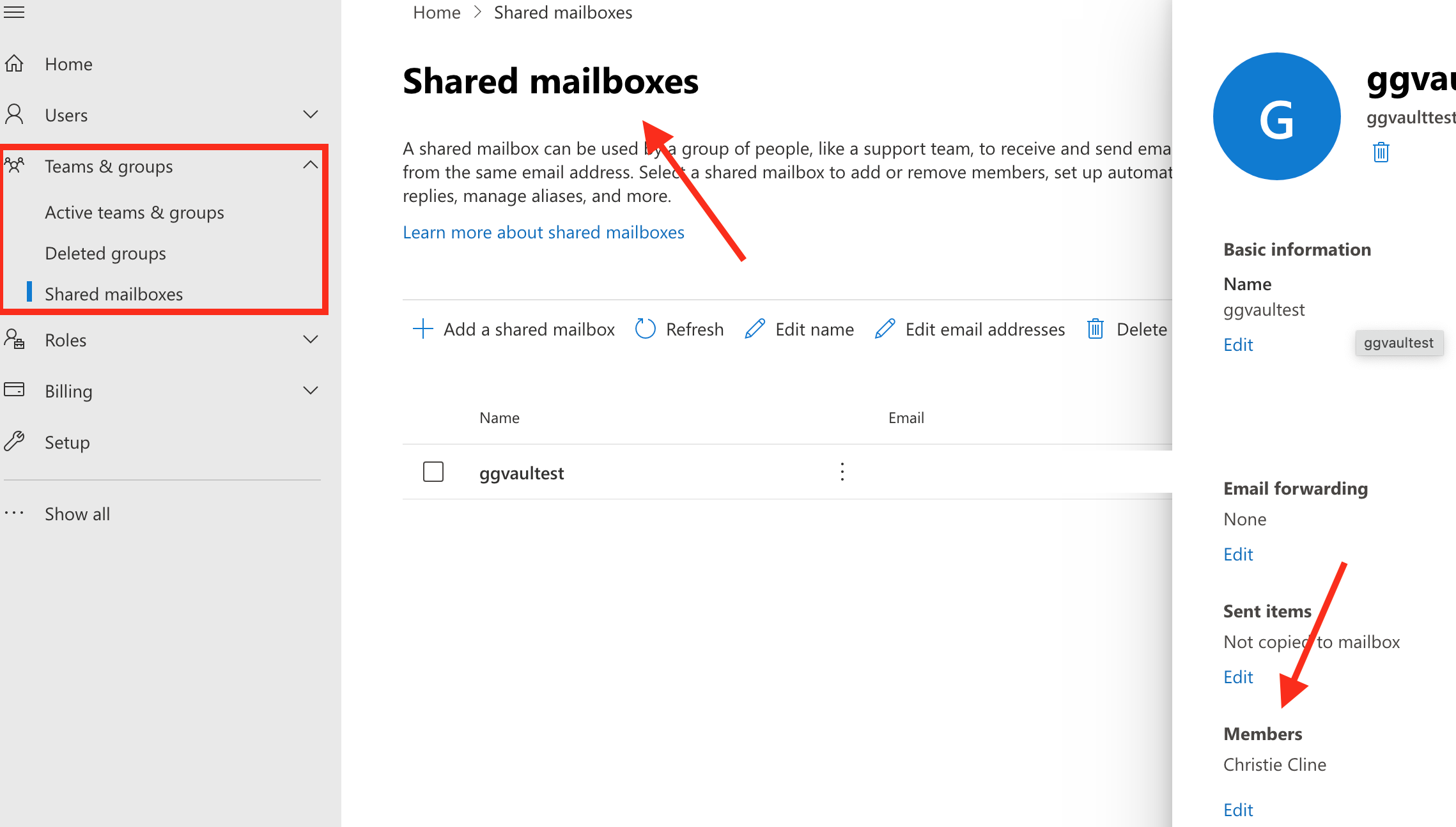
Add the migration account as a member to the target Unified Group, Teams group, or Shared Mailbox before initiating migration.
This must be done BEFORE starting the migration process
Check All Four
Screenshots