Free Busy Tool Troubleshooting
Verify calendar availability and diagnose configuration issues.
Free/Busy Testing Utility Flow
Overview
The Free/Busy testing utility is a diagnostic tool that enables administrators to verify calendar availability configurations and test free/busy lookups between different platforms. It's essential for validating coexistence setups between Office 365 and Google Workspace.
Primary Purpose
Use this tool to check "Free/busy and calendar availability between tenants" and diagnose any configuration issues before they affect end users.
Query Types
📧 Office 365 to Office 365
Direct availability queries within the same platform. Tests basic EWS connectivity and permissions.
🔄 Office 365 to Google
Cross-platform availability requests routed through Cloudiway. Tests full coexistence configuration.
Cross-Platform Query Flow
When querying across different systems, the free/busy request follows this path:
- 1
Initial Request
The test tool sends a free/busy query to Office 365
- 2
Address Space Lookup
Office 365 locates matching AvailabilityAddressSpaces configuration
- 3
Route to Cloudiway
Request is forwarded to the Cloudiway platform
- 4
Target System Query
Cloudiway queries the target system (e.g., Google Calendar)
- 5
Results Return
Free/busy information flows back through each layer to the tool
Using the Tool
Download and Setup
The utility is available for download as a standalone tool (testfb.zip),
making it accessible for independent testing without requiring platform access.
- Download the testfb.zip file from Cloudiway
- Extract to a local folder
- Run the executable to launch the testing interface
Test Configuration
| Source User | Email of the user making the query |
| Target User | Email of the user whose availability to check |
| Date Range | Time period for availability lookup |
| Credentials | Admin credentials with appropriate permissions |
Error Handling
Common Errors and Solutions
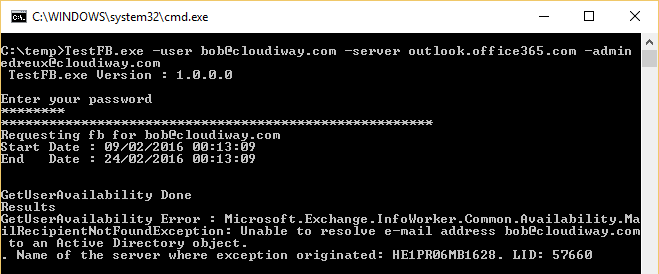
If any error occurs, the message will be displayed on the screen. Common issues include:
Authentication Failed
Verify credentials and check that the account has necessary permissions.
User Not Found
Ensure the target user exists and is properly configured in the user list.
Address Space Not Configured
Check AvailabilityAddressSpace settings in Office 365 PowerShell.
Connection Timeout
Verify network connectivity and firewall rules allow outbound connections.
Diagnostic Output
Screenshots