How to Configure Free Busy in G Suite
Enable calendar availability sharing between Google Workspace and Exchange/Office 365.
Google Calendar Interop Configuration
Overview
Google Workspace provides Calendar Interoperability (Interop) functionality that enables free/busy lookups across different calendar systems. By configuring Google to communicate with Cloudiway's coexistence server, users can check availability of colleagues on Exchange or Office 365 directly from Google Calendar.
Key Benefit
When Google Calendar users click "Find a time" for meeting scheduling, they can see the availability of attendees on Exchange or Office 365, making cross-platform collaboration seamless.
How It Works
- 1
User Creates Meeting
A Google Workspace user creates a new meeting and adds attendees from Exchange/Office 365.
- 2
Find a Time
User clicks "Find a time" to check availability. A "Refresh all" button appears when Calendar Interop is enabled.
- 3
Query via Cloudiway
Google sends the free/busy request to Cloudiway's EWS endpoint, which queries the target system.
- 4
Results Displayed
Free/busy information is returned and displayed in Google Calendar's scheduling view.
Configuration Steps
Step 1: Access Google Admin Console
- Sign in to the Google Admin Console
- Navigate to Apps → Google Workspace → Calendar
- Click on Calendar Interop Management
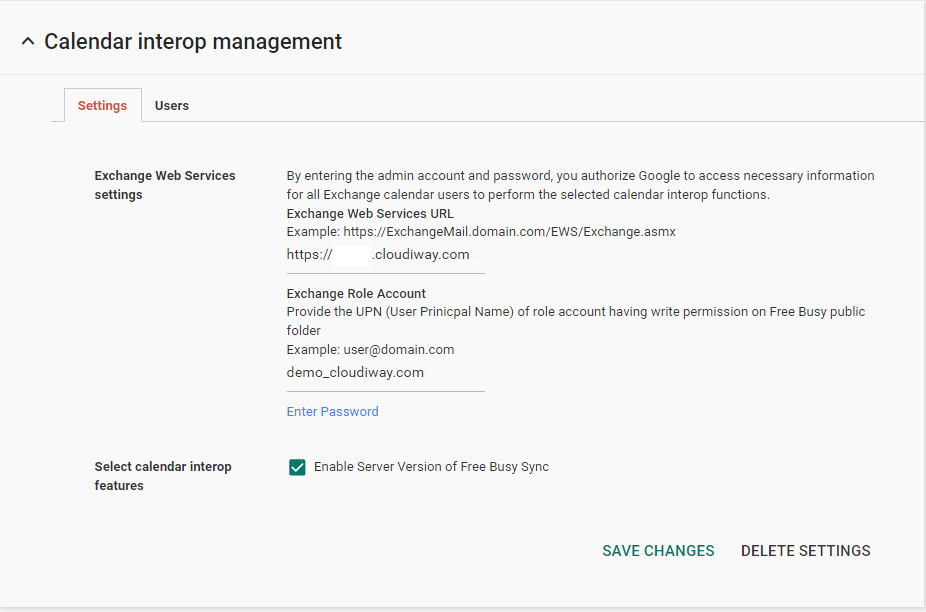
Step 2: Configure Exchange Web Services Settings
| Exchange Web Services URL | Enter the Cloudiway-provided server URL |
| Exchange Role Account | Enter your Cloudiway Consumer Key |
| Password | Enter your Cloudiway Consumer Secret |
Where to Find Credentials
Step 3: Enable Calendar Interop Features
- ✓ Check the box to enable Calendar interop features
- ✓ Save your configuration changes
Verification
Test Your Configuration
- Open Google Calendar and create a new event
- Add an attendee from Exchange/Office 365
- Click "Find a time" or "Scheduling"
- Look for the "Refresh all" button (indicates Interop is active)
- Verify you can see the external user's availability
Propagation Time
Screenshots