Error Message
During a file audit or migration from Google Drive, you may encounter this error:
This error indicates that the Google Drive API cannot access the user's files due to permission restrictions in Google Workspace.
Root Causes
This error can occur due to one of two permission issues:
Drive App Disabled for User's Group
The user belongs to an organizational unit (OU) or group where the "Drive and Docs" app has been disabled by an administrator.
Drive SDK API Access Disabled
The Google Workspace admin setting "Allow users to access Google Drive with the Drive SDK API" is turned off for the affected users.
Solution
To resolve this error, you need to enable both permissions for the impacted users in the Google Admin Console.
Step 1: Enable Drive and Docs App for the User's Group
- Sign in to the Google Admin Console
- Navigate to Apps → Google Workspace → Drive and Docs
- Click on Service status
- Select the organizational unit containing the affected users
- Ensure the service status is set to ON for everyone
- If it was OFF, click Save
Organizational Units
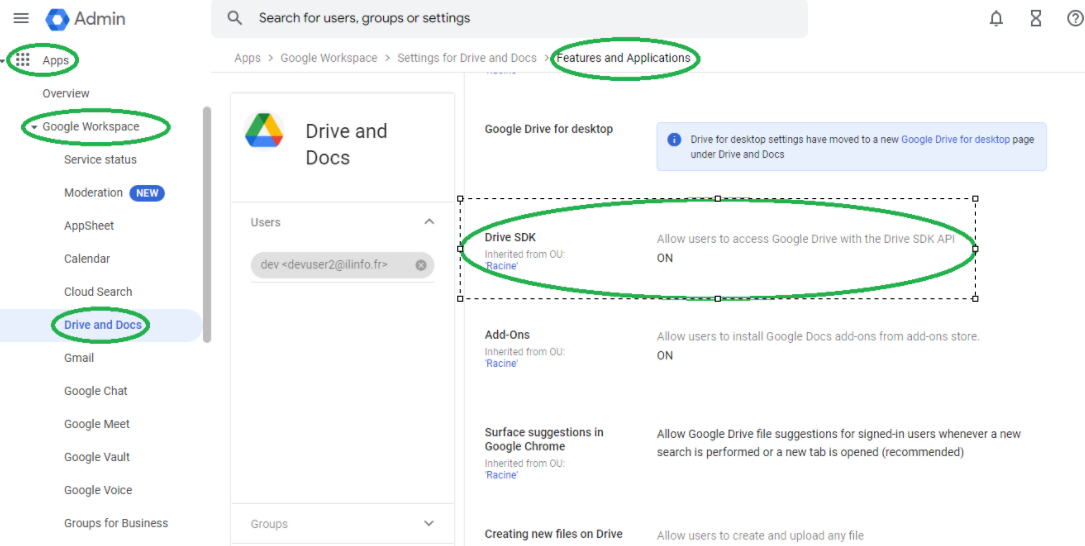
Step 2: Enable Drive SDK API Access
- In the Google Admin Console, go to Apps → Google Workspace → Drive and Docs
- Click on Features and Applications
- Scroll to find "Drive SDK"
- Ensure "Allow users to access Google Drive with the Drive SDK API" is checked
- If unchecked, enable it and click Save
Alternative Path
You can also access this setting via:
Security → Access and data control → API controls → Manage Google services
Then enable "Drive SDK" for the appropriate organizational units.
Propagation Time
Verify the Fix
After enabling both settings:
- Wait at least 15 minutes for changes to propagate
- Return to your Cloudiway project
- Retry the file audit or migration for the affected user
- The error should no longer appear
Still Having Issues?
- Verify the user is in the correct organizational unit
- Check that domain-wide delegation is properly configured
- Ensure the service account has the required Drive API scopes
- Contact Cloudiway support with the user email and error details