To allow Cloudiway to access your Microsoft 365 tenant and perform migrations (emails, files, Teams), you need to create an EntraID application (formerly Azure AD) with the appropriate permissions. This guide walks you through this configuration step by step.
Video Tutorial

Automatic vs Manual Configuration
The following steps will generate the Client ID, the Client Secret, and the Certificate needed in your Cloudiway connector.
Prerequisites
Before you begin, make sure you have:
- Global Administrator or Application Administrator rights on the Microsoft 365 tenant
- Access to the Azure Portal
- PowerShell installed on your computer (for certificate creation)
- An active Cloudiway account
Step 1: Create the Certificate for the New Application
Using PowerShell, execute the following commands to create your certificate:
$certname = "{certificateName}"    ## Replace {certificateName} with your certificate name
$cert = New-SelfSignedCertificate -Subject "CN=$certname" `
    -CertStoreLocation "Cert:\CurrentUser\My" `
    -KeyExportPolicy Exportable `
    -KeySpec Signature `
    -KeyLength 2048 `
    -KeyAlgorithm RSA `
    -HashAlgorithm SHA256
Export the certificate (.cer):
Export-Certificate -Cert $cert -FilePath "C:\Users\admin\Desktop\$certname.cer" ## Specify your preferred locationCertificate Name
CloudiwayMigration or CloudiwaySource to easily identify the certificate later.
Step 2: Create the Private Key with a Password for Cloudiway
Execute the following command lines to define your password:
$mypwd = ConvertTo-SecureString -String "{myPassword}" -Force -AsPlainText ## Replace {myPassword} with a strong passwordExport the Private key (.pfx):
Export-PfxCertificate -Cert $cert -FilePath "C:\Users\admin\Desktop\$certname.pfx" -Password $mypwd ## Specify your preferred locationSave Your Password
Step 3: Create a New Application
Log in to the Azure portal using your Microsoft 365 administrator account:
- Go to https://portal.azure.com
- Select Microsoft Entra ID
- Click on App Registration
- Click on New Registration
- Give a name to the application (e.g.,
Cloudiway Platform) - Supported Account types: Select "Accounts in this Organizational directory Only"
Redirect URI Configuration
If you are migrating Microsoft Teams and plan to migrate direct messages, you need to add these two redirect links in the source Application:
https://portal.cloudiway.com/teams/callbackhttps://portal.cloudiway.com/connector
In other cases, the redirect URL is not used. Enter any value, for example https://notused
- Click on Register
Important
Step 4: Upload Certificate
Upload the Certificate
- Click on Certificates and Secrets
- Click on the Certificates tab
- Click on Upload Certificate
- Select the
.cerfile you created in Step 1 - Click Add
Enable Public Client Flows
- Click on Authentication in the left menu
- Scroll down to Advanced settings
- Enable "Allow public client flows" and set it to Yes
- Click Save
Step 5: Configure API Permissions
The required permissions depend on the type of migration you are performing and whether the connector is configured as Source or Target.
- Click on API Permissions in the left menu
- Click on Add a permission
- Select Microsoft Graph or SharePoint depending on the workload
- Choose Application permissions
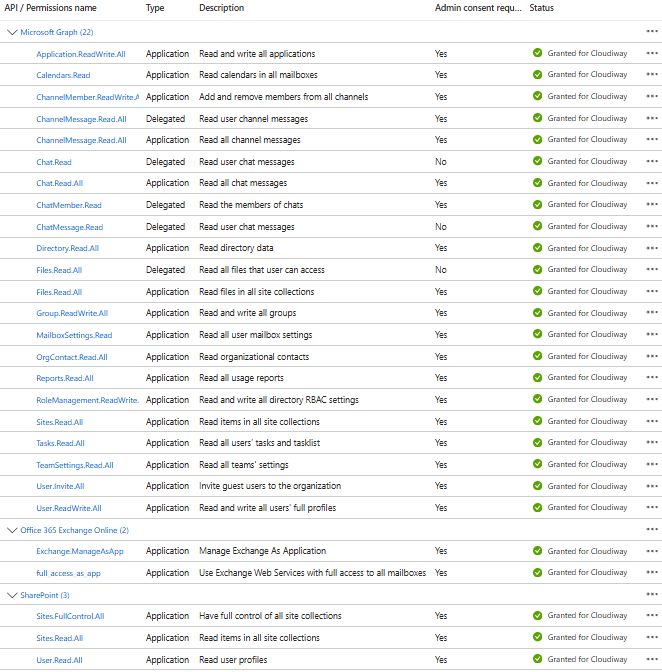
- Add the required permissions based on the tables below
Permissions Reference Tables
Below are the detailed permissions required for each connector type. Permissions marked with (Delegated) require delegated permissions instead of application permissions.
Microsoft Entra ID API Permissions — Source Connectors
| Connector Type | API | Permission | Business Usage |
|---|---|---|---|
| GALSync | Microsoft Graph | User.ReadWrite.All | Reads source user directory attributes (display name, mail, proxy addresses, job title, department, phone) for Global Address List synchronization. |
| Microsoft Graph | Group.Read.All | Enumerates source distribution lists, security groups, and Microsoft 365 Groups along with their direct/transitive members and owners. | |
| Microsoft Graph | OrgContact.Read.All | Retrieves mail-enabled organizational contacts to be mirrored on the target tenant. | |
| Microsoft Graph | Directory.Read.All | Identifies accepted/verified tenant domains and enumerates deleted directory objects. | |
| Microsoft Graph | User.Invite.All | Optional — required only when source GAL entries are provisioned as Guest users. | |
| Exchange Online | Exchange.ManageAsApp | App-only authentication to read Exchange organization configuration and contact metadata. | |
| Free/Busy | Microsoft Graph | Calendars.Read | Queries cross-tenant calendar schedules, default calendar, events, recurring instances, and event attachments for availability lookups. |
| Exchange Online | full_access_as_app | App-only EWS impersonation to read source mailbox content: emails, folders, contacts, calendar items, and attachments. | |
| Exchange Online | Exchange.ManageAsApp | Reads mailbox metadata, recipient type details, distribution group membership, LegacyExchangeDN (X500), and archive identifiers. | |
| Microsoft Graph | MailboxSettings.ReadWrite | Reads Outlook inbox rules from source mailboxes for migration. | |
| OneDrive / Files | Microsoft Graph | User.Read.All | Lists tenant users and resolves the personal OneDrive URL for each user. |
| Microsoft Graph | Files.ReadWrite.All | Reads OneDrive file/folder content, metadata, sharing permissions, and MIP sensitivity labels. The Graph SDK surface requires the ReadWrite scope; no .Read.All variant is used by the code. | |
| Microsoft Graph | Sites.FullControl.All | Reads the underlying SharePoint context when a personal drive is backed by a document library. | |
| Microsoft Graph | Directory.Read.All | Resolves directory principals referenced by OneDrive sharing permissions. | |
| Teams / Group | Microsoft Graph | Group.Read.All | Enumerates source Microsoft 365 Groups and Teams including members, owners, and conversations. |
| Microsoft Graph | ChannelMessage.Read.All | Reads Teams channel messages and threaded replies. | |
| Microsoft Graph | ChannelMember.ReadWrite.All | Enumerates private channel members on the source tenant prior to migration. The Graph SDK call surface requires the ReadWrite scope; no .Read.All variant exists. | |
| Microsoft Graph | Chat.Read.All | Reads 1:1 and group chat history, membership, and messages. | |
| Microsoft Graph | Tasks.Read.All | Reads Planner plans, buckets, tasks, and task details associated with source Teams. | |
| Microsoft Graph | Files.ReadWrite.All | Reads files stored in Teams channel-backed SharePoint libraries. | |
| Microsoft Graph | Sites.FullControl.All | Reads Teams- and Group-backed SharePoint sites and downloads team profile photos. | |
| Microsoft Graph | Directory.Read.All | Resolves directory references for channel/chat membership and team assignments. | |
| Microsoft Graph | User.Read.All | Resolves user identities referenced across channels, chats, and team ownership. | |
| SharePoint | Microsoft Graph | Sites.FullControl.All | Reads source site collections, lists, libraries, content types, role definitions, role assignments, and unique permissions. |
| Microsoft Graph | User.Read.All | Resolves user identities referenced in site permissions and role assignments. | |
| Microsoft Graph | Group.Read.All | Resolves groups referenced as SharePoint permission principals. | |
| Microsoft Graph | Directory.Read.All | Enumerates directory objects for site security mapping. | |
| Intune | Microsoft Graph | DeviceManagementApps.ReadWrite.All | Reads Intune mobile apps, app protection policies (Android/iOS/MDM Windows), targeted app configurations, policy sets, and eBook categories. ReadWrite scope required — the .Read.All variant is not used by the code. |
| Microsoft Graph | DeviceManagementConfiguration.ReadWrite.All | Reads device configurations, compliance policies, Autopilot profiles, enrollment configurations, scripts, filters, update profiles, notification templates, intents, and Endpoint Security baselines. | |
| Microsoft Graph | DeviceManagementManagedDevices.ReadWrite.All | Enumerates managed devices and Autopilot device identities. | |
| Microsoft Graph | Policy.ReadWrite.ConditionalAccess | Reads Conditional Access policies, Named Locations, and Authentication Context Class References. Read-only scope is insufficient for migration. | |
| Microsoft Graph | Agreement.ReadWrite.All | Reads Terms of Use agreements and their localized PDF files. | |
| Microsoft Graph | Device.ReadWrite.All | Reads Azure AD device objects and their registered owners. | |
| Microsoft Graph | Group.Read.All | Resolves groups used as Intune assignment targets. | |
| Microsoft Graph | Organization.Read.All | Retrieves source tenant identity metadata (tenant ID, display name). |
Microsoft Entra ID API Permissions — Target Connectors
For Target connectors, you generally need Write permissions instead of Read permissions. Also, it's IMPORTANT to have the access level BOTH as Application type and Delegated type.
| Connector Type | API | Permission | Business Usage |
|---|---|---|---|
| GALSync | Microsoft Graph | User.ReadWrite.All | Provisions and updates Guest and MailUser objects representing source identities in the target GAL; purges deleted users. |
| Microsoft Graph | User.Invite.All | Creates Guest users on the target tenant for cross-tenant GAL representation. | |
| Microsoft Graph | Group.ReadWrite.All | Updates and removes target groups when source-side group attributes change. | |
| Microsoft Graph | Directory.Read.All | Validates accepted domains on the target tenant. | |
| Exchange Online | Exchange.ManageAsApp | Provisions MailUsers and synchronizes mail contacts; updates proxy addresses, MOERA, and GAL visibility; pushes directory attributes (title, department, phone, address) that cannot be written via Graph App-only. | |
| Exchange Online | full_access_as_app | App-only EWS impersonation to write emails, folders, contacts, and calendar items into target mailboxes. | |
| Exchange Online | Exchange.ManageAsApp | Provisions target mailboxes (User, Shared, Room, Equipment), MailUsers, distribution and security groups; configures Full Access, Send-As, Send-On-Behalf, and per-folder delegations; migrates LegacyExchangeDN (X500) and archive identifiers; pushes Outlook signatures. | |
| Microsoft Graph | MailboxSettings.ReadWrite | Writes Outlook inbox rules to target mailboxes. | |
| OneDrive / Files | Microsoft Graph | User.Read.All | Resolves target user identities and confirms OneDrive provisioning state. |
| Microsoft Graph | Files.ReadWrite.All | Creates folders, uploads files via large-file chunked upload sessions, sets sharing permissions, and applies MIP sensitivity labels on target drives. | |
| Microsoft Graph | Sites.FullControl.All | Manages target SharePoint site collections backing OneDrive libraries; lists, fetches, and creates MIP sensitivity labels via the Information Protection beta endpoint. Uses beta endpoints. | |
| Microsoft Graph | InformationProtectionPolicy.Read.All | Reads the target tenant's information protection policy and sensitivity label definitions before applying them to migrated files. Required alongside Sites.FullControl.All for full MIP label coverage. | |
| Microsoft Graph | Group.ReadWrite.All | Adds members and owners to target Microsoft 365 Groups when migrating to a Group-backed library. | |
| Microsoft Graph | Directory.Read.All | Resolves directory principals referenced in target file permissions. | |
| Exchange Online | Exchange.ManageAsApp | Provisions target Shared Mailboxes when the source user has no Exchange license. | |
| Teams / Group | Microsoft Graph | Group.ReadWrite.All | Creates target Microsoft 365 Groups and Teams; sets membership rules and dynamic group properties; adds/removes members and owners; posts Outlook Group conversations. |
| Microsoft Graph | Application.ReadWrite.All | Provisions, updates, and removes the Cloudiway multi-tenant Azure AD application on the target tenant for cross-tenant coexistence; manages password credentials and fallback public client settings. | |
| Microsoft Graph | Teamwork.Migrate.All | Utilizes the Teams Migration API to post messages with historical timestamps and finalize team and channel migration. | |
| Microsoft Graph | ChannelMember.ReadWrite.All | Adds owners and members to private channels. | |
| Microsoft Graph | Chat.ReadWrite.All | Creates 1:1 and group chats, manages chat membership, and posts messages on the target tenant. | |
| Microsoft Graph | Tasks.ReadWrite.All | Provisions Planner plans, buckets, tasks, and task details on target Teams. | |
| Microsoft Graph | Sites.FullControl.All | Migrates Teams- and Group-backed SharePoint site content, libraries, and team profile photos. | |
| Microsoft Graph | Directory.Read.All | Reads target organization identity for cross-tenant operations. | |
| Microsoft Graph | User.Read.All | Resolves target user identities for channel/chat membership and team ownership. | |
| SharePoint | Microsoft Graph | Sites.FullControl.All | Creates target site collections, libraries, and content types; provisions role definitions, role assignments, and unique permissions. |
| Microsoft Graph | User.ReadWrite.All | Provisions target users referenced in site permissions. | |
| Microsoft Graph | Group.ReadWrite.All | Provisions and updates groups used as SharePoint permission principals. | |
| Microsoft Graph | Application.ReadWrite.All | Provisions the Cloudiway cross-tenant Azure AD application used for SharePoint coexistence operations. | |
| Microsoft Graph | Directory.Read.All | Resolves directory principals for site security mapping. | |
| Signature | Exchange Online | Exchange.ManageAsApp | Pushes HTML signatures to target user mailboxes with auto-add on new mails and replies. |
| Intune | Microsoft Graph | DeviceManagementApps.ReadWrite.All | Provisions Intune mobile apps, assignments, app protection policies, app configurations, policy sets, and eBook categories. |
| Microsoft Graph | DeviceManagementConfiguration.ReadWrite.All | Provisions Autopilot profiles, device categories, scripts, filters, device configurations, update profiles, notification templates, compliance policies, enrollment configurations, configuration policies, intents, and reusable policy settings. | |
| Microsoft Graph | DeviceManagementManagedDevices.ReadWrite.All | Imports Autopilot device identities (hardware hash + serial number) and removes source-side managed devices after transfer. | |
| Microsoft Graph | Policy.ReadWrite.ConditionalAccess | Creates and updates Conditional Access policies, Named Locations, and Authentication Context Class References. | |
| Microsoft Graph | Agreement.ReadWrite.All | Creates Terms of Use agreements with localized PDF files on the target tenant. | |
| Microsoft Graph | Device.ReadWrite.All | Changes Azure AD device registered owners for cross-tenant device transfer. Requires a delegated user token (ROPC flow). | |
| Microsoft Graph | Group.Read.All | Resolves assignment target groups on the target tenant. | |
| Microsoft Graph | Organization.Read.All | Retrieves target tenant identity metadata. | |
| Cross-Tenant Migration | Microsoft Graph | Application.ReadWrite.All | Creates and updates multi-tenant Azure AD applications (configured with AzureADMultipleOrgs audience) used for tenant-to-tenant coexistence. |
| Microsoft Graph | Organization.Read.All | Retrieves target tenant ID and display name during coexistence setup. | |
| Mail Routing | Exchange Online | Exchange.ManageAsApp | Configures cross-tenant SMTP forwarders during mail coexistence so messages route between source and target mailboxes. |
SharePoint Online API Permissions — Source vs Target
These permissions are granted under the Office 365 SharePoint Online API namespace in Entra ID and are distinct from the Microsoft Graph permissions of similar names. They cover CSOM (Client-Side Object Model) operations used by Cloudiway for SharePoint and OneDrive migration.
| Connector | API | Source Permission | Target Permission | Business Usage |
|---|---|---|---|---|
| SharePoint | SharePoint | Sites.FullControl.All | Sites.FullControl.All | CSOM-level access (separate from the Graph permission of the same name) used to read source site structure and to provision target sites, libraries, content types, role definitions, and unique role assignments. Also used to auto-promote the connector admin as site collection administrator when access fails. |
| SharePoint | User.Read.All | User.ReadWrite.All | Source reads user references for permission mapping; target provisions/ensures users on destination sites via Web.EnsureUser(). | |
| SharePoint | — | TermStore.ReadWrite.All | Target-only — recreates Term Groups, Term Sets, and taxonomy terms in the destination Managed Metadata Service. Term Store migration is performed via CSOM and has no Graph equivalent. | |
| OneDrive | SharePoint | Sites.FullControl.All | Sites.FullControl.All | Source: CSOM read access to SharePoint sites hosting personal drives. Target: CSOM write access to provision personal sites in bulk (CreatePersonalSiteEnqueueBulk) and manage destination drive structure. |
| SharePoint | User.Read.All | User.ReadWrite.All | Source reads user references in OneDrive sharing permissions; target ensures users exist on destination OneDrive sites. |
Note on ROPC requirement
IsFallbackPublicClient = true and use the Resource Owner Password Credentials (ROPC) flow with the migration admin's UPN and password.
GalSync Permission Usage Details
This section documents how each declared permission is consumed by the GalSync product (used on both Source and Target connectors, internal identifier Product.Galsync). It is intended for security and compliance reviewers who need to validate why elevated Microsoft Graph permissions are required.
Declared permissions
Directory.Read.All— read directory metadata required to resolve users, groups, and contacts.Group.Read.All— read distribution and mail-enabled security groups participating in GAL synchronization.OrgContact.Read.All— read organizational (mail) contacts that must be replicated to the target GAL.User.ReadWrite.All— read source user attributes and, when applicable, create or update target users (MailUsers / Guests).User.Invite.All— invite users as Guests in the target tenant when GAL entries are projected as B2B Guests.Exchange.ManageAsApp— Azure role required for app-only authentication against Exchange Online PowerShell (used for MailUser / mail-attribute provisioning that Microsoft Graph does not expose).
Read vs Write operations
User.ReadWrite.All scope is exercised only when a target write is explicitly requested.
1. User.ReadWrite.All — Read path (list source users)
| Attribute | Value |
|---|---|
| Permission | User.ReadWrite.All (read usage) |
| File | Shared.Lib/Office365.IO/Graph/UsersService.cs:14-50 |
| Endpoint / Method | Users.GetAsync(filter, select, top=500) |
| Operation type | Read |
Business usage:
- Used to list all source users that must be projected into the target Global Address List.
- Paged enumeration (
top=500) over the directory with a server-side$filterand an explicit$selectprojection to retrieve only the attributes needed for GAL synchronization. - Retrieves GAL-relevant user properties, including:
displayNamemailproxyAddressesjobTitlemobilecitydepartment- and other GAL-related user properties (e.g.
givenName,surname,companyName,officeLocation,businessPhones).
Why elevated permission is required: User.Read.All would be sufficient for the read path in isolation, but the same service is reused for the write path below. Microsoft Graph does not grant cross-scope inheritance, so the broadest scope actually invoked at runtime (User.ReadWrite.All) is the one declared, in order to keep a single consistent application registration across Source and Target roles.
2. User.ReadWrite.All — Write path (create target users)
| Attribute | Value |
|---|---|
| Permission | User.ReadWrite.All (write usage) |
| File | UsersService.cs:60-65 |
| Endpoint / Method | Users.PostAsync(user) |
| Operation type | Write |
Business usage:
- Used to create users in the target tenant when a GAL entry must be materialised as a native Entra ID user object.
- This operation is uncommon: in the standard GalSync flow, MailUsers are provisioned through Exchange Online PowerShell (
New-MailUser), which is the supported Microsoft path for setting mail-routing attributes such asExternalEmailAddressandtargetAddress. - Retained for backward compatibility and for specific migration scenarios where direct Graph user creation is required (for example, tenants without an Exchange Online plan attached to the service principal, or hybrid topologies where the EXO endpoint is unavailable).
Why elevated permission is required: creating a user through Microsoft Graph requires the User.ReadWrite.All application scope; there is no narrower Graph permission that authorizes POST /users. This call is gated by an explicit per-job configuration flag and is never executed implicitly by the read path.
Audit and least-privilege guidance
User.ReadWrite.All, the read path will still operate after downgrading the registration to User.Read.All. The Graph-based target user creation (path #2) will then return 403 Forbidden and GalSync will fall back to the Exchange Online PowerShell provisioning route, which is the recommended configuration for most customers.
Step 6: Mail Migration - Additional Configuration
When is this step required?
6.1 Add EWS Permissions (Office 365 Exchange Online)
For Mail migration, you need to add permissions from the Office 365 Exchange Online API (not Microsoft Graph):
- Go to API Permissions and click Add a permission
- Select the tab APIs my organization uses
- Search for
Office 365 Exchange Onlineand select it - Select Application permissions
- Expand Other permissions and select
full_access_as_app - Also add
Exchange.ManageAsApp(required for Exchange administration) - Click Add permissions
6.2 Configure App-Only Authentication (Manifest)
To enable app-only authentication for Exchange, you need to modify the application manifest:
- Select Manifest in the left-hand navigation under Manage
- Locate the
requiredResourceAccessproperty in the manifest, and add the following inside the square brackets ([]):
{
    "resourceAppId": "00000002-0000-0ff1-ce00-000000000000",
    "resourceAccess": [
        {
            "id": "dc890d15-9560-4a4c-9b7f-a736ec74ec40",
            "type": "Role"
        }
    ]
}- Click Save at the top of the page
 Target >

6.3 Assign Microsoft Entra Roles
You need to assign the following roles to your application:
- Exchange Administrator
- Exchange Recipient Administrator
Steps to Assign Roles:
- Navigate to the Microsoft Entra roles and administrators page:
https://portal.azure.com/#view/Microsoft_AAD_IAM/AllRolesBlade - Search for
Exchangein the roles filter - Select the Exchange Administrator role
- Click on Add Assignment
- Search for and select the app that you created
- Click Add
- Repeat the above steps for the Exchange Recipient Administrator role
Automatic Cloudiway Connectors
- For Source:
5f7eb765-974a-45c6-8f93-43a417abdedd - For Target:
ac1e5a45-2177-412c-ac06-09ba04df530a
Step 7: Grant Admin Consent
For the application to use the granted permissions:
- Go back to "API permissions"
- Click on "Grant admin consent for [your organization]"
- Confirm by clicking "Yes"
All permissions should now display a green checkmark in the "Status" column.
Configuration in Cloudiway
Now that your application is created, configure it in Cloudiway:
- Log in to the Cloudiway Portal
- Navigate to your project and open the Connector Settings
- Enter the following information:
- Tenant Name: the Tenant Name is the unique prefix before .onmicrosoft.com in your Microsoft 365 initial domain.
- Application ID: The Application (client) ID
- Certificate: Upload the
.pfxfile created in Step 2 - Certificate Password: The password you set when creating the private key
- Test the connection to validate the configuration
Configuration complete!
Common Troubleshooting
"Insufficient privileges" Error
This error indicates that:
- Admin consent has not been granted
- Permissions are missing
- The secret has expired
Solution: Check in "API permissions" that all permissions have "Granted" status and that the secret is still valid.
"AADSTS700016: Application not found" Error
The Application ID is incorrect or the application has been deleted.
Solution: Verify the Application ID in the Azure portal and in the Cloudiway configuration.
"Invalid client secret" Error
The client secret is incorrect or has expired.
Solution: Generate a new secret or use certificate authentication (recommended) and update the configuration in Cloudiway.
"Certificate Error" or "Invalid Certificate"
The certificate is invalid, expired, or the password is incorrect.
Solution: Verify that:
- You uploaded the
.cerfile to Azure (not the.pfx) - You provided the
.pfxfile and correct password to Cloudiway - The certificate has not expired