How to Whitelist Cloudiway Domain
Ensure migration emails reach your users by whitelisting cloudiway.com.
Overview
The Cloudiway platform sends emails to end users during self-service migrations for Slack messages, Teams chat, and Intune migrations. These emails may be flagged as spam and require whitelisting of the cloudiway.com domain.
Sender Address: [email protected]
Whitelisting Flow
Microsoft 365 Instructions
Access Anti-Spam Settings
Navigate to https://security.microsoft.com/antispam
Select Inbound Policy
Click on Anti-Spam inbound policy (default)
Edit Allow List
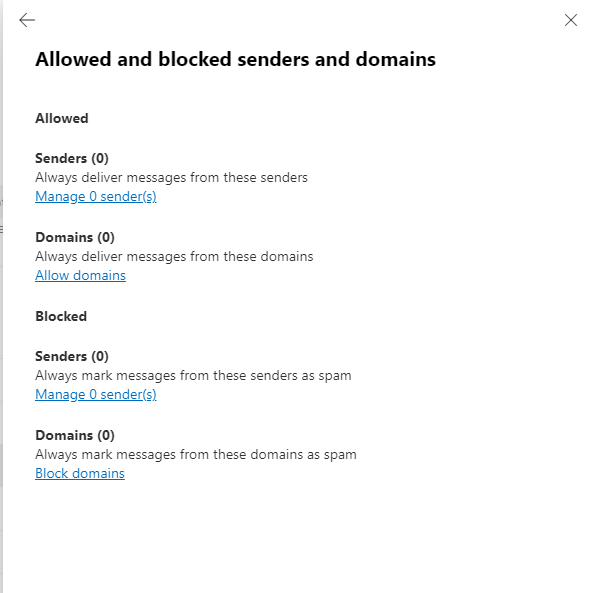
Click Edit allowed and blocked senders and domains
Add Domain
Choose Allow domains and enter cloudiway.com
Save Changes
Save the configuration. Emails should no longer arrive in spam after resending.
Google Workspace Instructions
Access Admin Console
Navigate to https://admin.google.com/
Navigate to Gmail Settings
Go to Apps → Google Workspace → Gmail → Spam, Phishing and Malware
Configure Spam Settings
Under Spam, click Configure or Add another rule
Create Rule
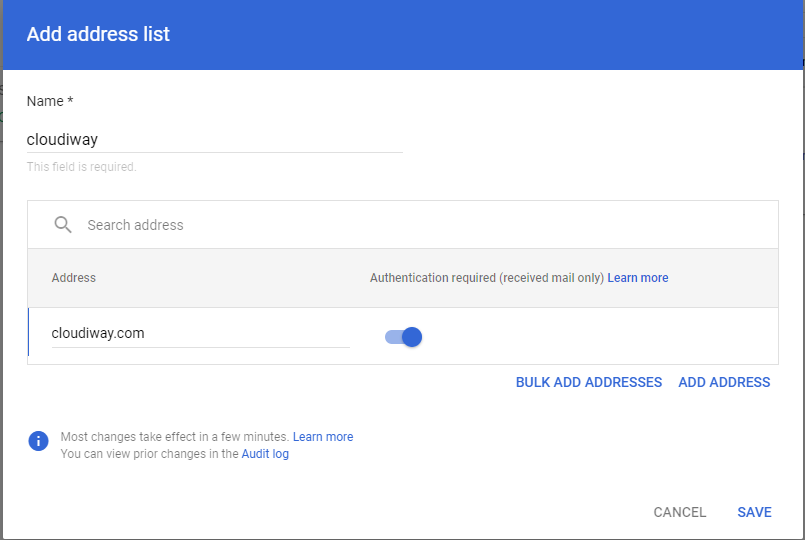
Enter a unique name, select "Bypass spam filters for messages from senders or domains in selected lists"
Add Domain to List
Create or select an Address List and add cloudiway.com
Save Configuration
Save the settings to apply the whitelist rule.
After Whitelisting
Screenshots