Migrating from Google Workspace (formerly G Suite) to Microsoft 365 is a significant undertaking. This comprehensive guide details exactly what gets migrated, how data is transformed, and what limitations you should be aware of before starting your migration project.
Migration Coverage
Overview
A Google Workspace to Microsoft 365 migration involves transferring data from multiple Google services to their Microsoft counterparts:
Gmail
→ Exchange Online / Outlook
Google Drive
→ OneDrive for Business / SharePoint
Google Calendar
→ Outlook Calendar
Google Chat
→ Microsoft Teams
Email Migration
Cloudiway migrates your Gmail data to Exchange Online with comprehensive coverage:
What Gets Migrated
- All emails including attachments
- Gmail labels → Outlook folders
- Starred emails → Regular emails in Outlook
- Deleted items and trash folder
- Spam folder contents
- Mailbox permissions and delegations
- Filters and rules (converted to Outlook rules)
Label to Folder Conversion
Contacts Migration
Your Google Contacts directory migrates to Outlook contacts:
- Personal contacts with all fields
- Contact groups → Contact lists in Outlook
- Contact photos (when available)
- Custom fields and notes
Contact List Members
Calendar Migration
Calendar migration includes comprehensive event transfer:
What Gets Migrated
- Primary calendar events
- Secondary calendars
- Recurring events with all recurrence patterns
- Meeting attendees and responses
- Calendar permissions
- Event descriptions and locations
- Reminders (converted to Outlook reminders)
Calendar Limitations
- Declined events are not migrated from the source
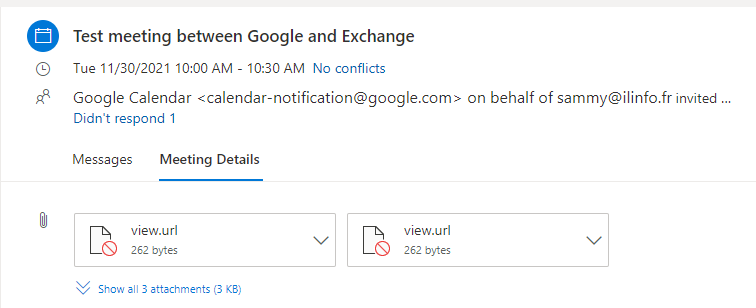
- Calendar invite attachments may not transfer properly due to format differences between Google and Exchange
- Google Tasks migrate separately from calendar events
Google Drive Migration
Google Drive files and folders migrate to OneDrive for Business or SharePoint Online:
What Gets Migrated
- All files and folders with hierarchy preserved
- File permissions (sharing settings)
- Version history (configurable)
- Shared Drives (Team Drives) → SharePoint document libraries
- Metadata including dates and ownership
Google File Format Conversion
Native Google files are automatically converted to Microsoft Office format:
| Google Format | Microsoft Format |
|---|---|
| Google Docs | Microsoft Word (.docx) |
| Google Sheets | Microsoft Excel (.xlsx) |
| Google Slides | Microsoft PowerPoint (.pptx) |
| Google Drawings | PNG image file |
Non-Migratable Files
- Google Forms
- Google Maps/My Maps
- Google Apps Scripts
- Google Jamboard files
Google Sites Migration
Google Sites pages migrate to SharePoint Online:
- Page content and text
- Embedded files and images
- Navigation menus (up to 2 levels)
- Page permissions
- Site structure
Navigation Depth
Google Chat Migration
Google Chat and Spaces migrate to Microsoft Teams:
- Chat rooms/Spaces → Teams channels
- Direct messages → Teams 1:1 chats
- Chat history and conversations
- Shared files in chat
- Public and private channels
Limitations and Considerations
Be aware of these limitations when planning your migration:
Size Limitations
- Email attachments: Maximum 35MB per attachment (Microsoft API restriction)
- File size: See the file size limitations article for detailed limits
Items Not Migrated
- Email signatures - Must be recreated in Outlook
- Out-of-office messages - Must be reconfigured
- Email templates - Must be recreated
- Blocked users - Require manual re-enablement
- Empty folders - Skipped during migration
- Corrupted messages/files - Skipped with error logging
Special Considerations
Google Vault Archives
If you use Google Vault for compliance and archiving, these archives require separate migration and specific licensing. See our Google Vault migration guide.
Ready to Start?
- Created a Google Service Account
- Configured your Google Workspace connector
- Set up your Microsoft 365 connector